📝 Self-Enrollment
⚙️ Enabling & Sharing the Link
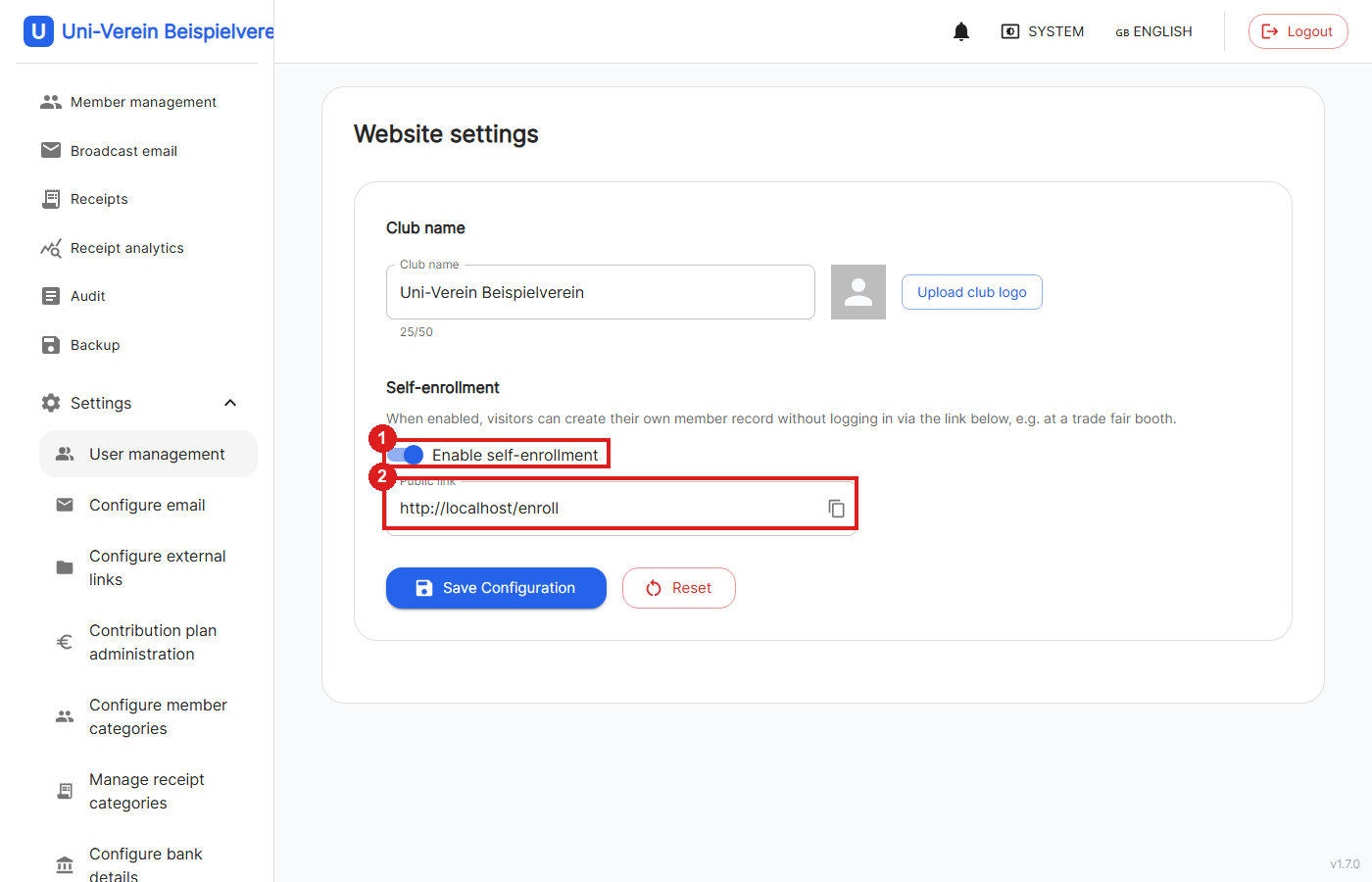
Website settings → Self-enrollment
1: Turns the public enrollment form on or off. Mail settings must be configured under "Configure email" first, otherwise neither confirmation nor notification emails can be sent.
2: The public link can be copied here and shared, e.g. on the club website or at an event.
📋 Public Enrollment Form
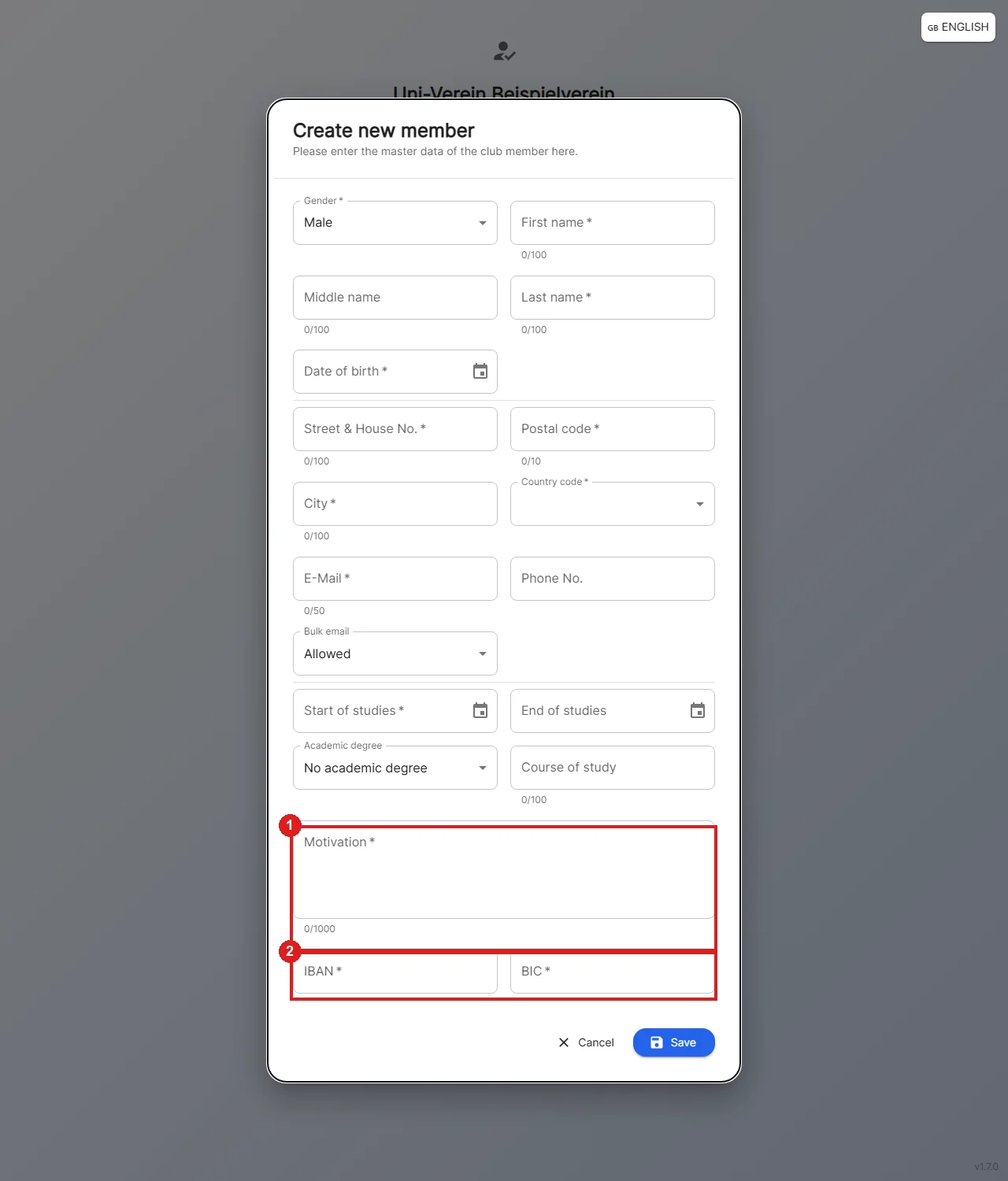
The public link takes prospective members straight to the enrollment form, without logging in.
Compared to the member form used by Admin/Finance Manager, member category, contribution plan, task within the club, entry/exit date, and SEPA consent are missing here - they're either set automatically or assigned later by a reviewer.
1: Instead, a short motivation for why the person wants to join is requested.
2: IBAN and BIC are required fields here, unlike in the admin form.
✉️ Email Confirmation
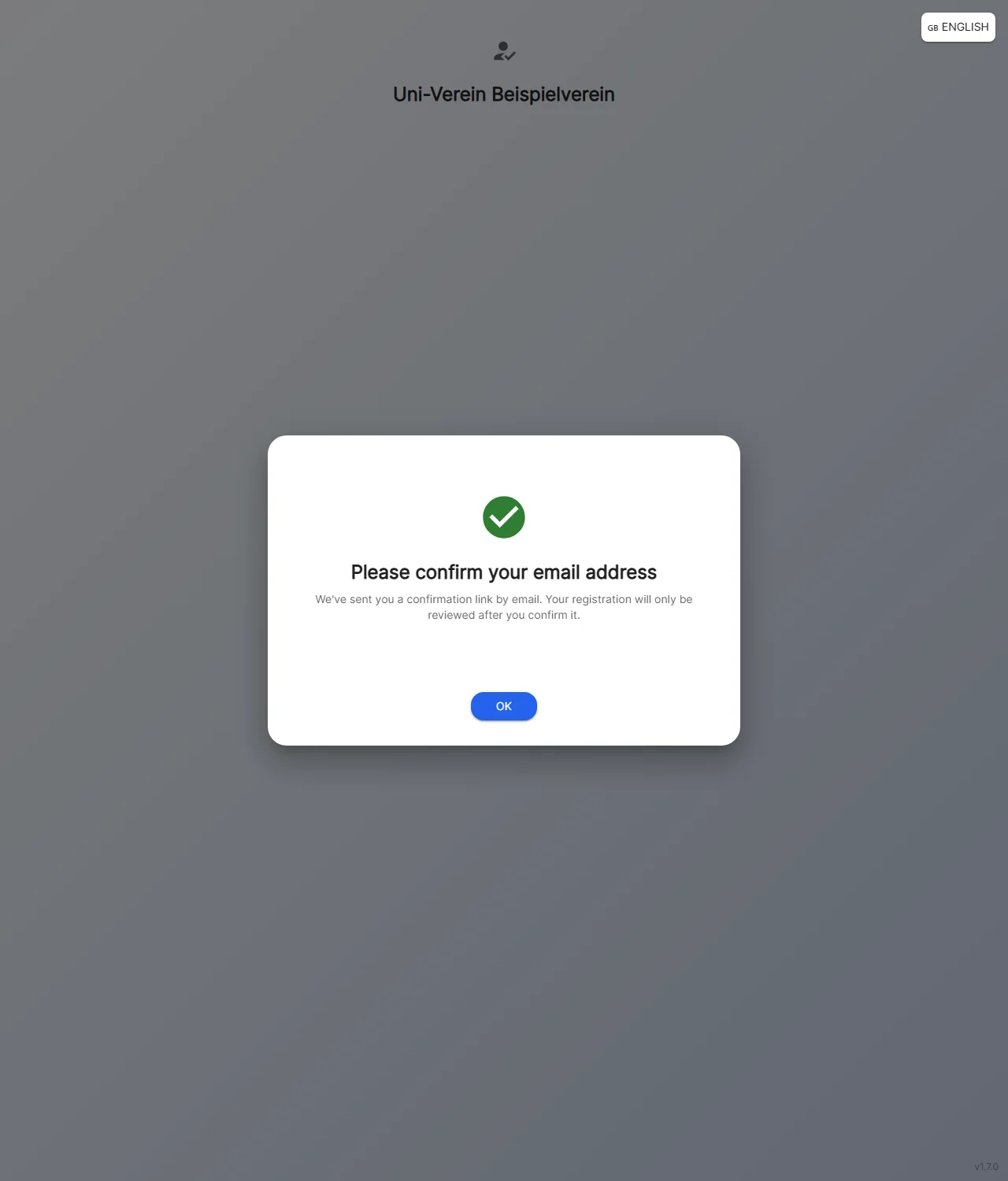
After submitting, this message stays visible until confirmed with "OK", the registration isn't complete yet.
A confirmation link valid for 48 hours is sent by email; after that, an unconfirmed registration is deleted automatically.
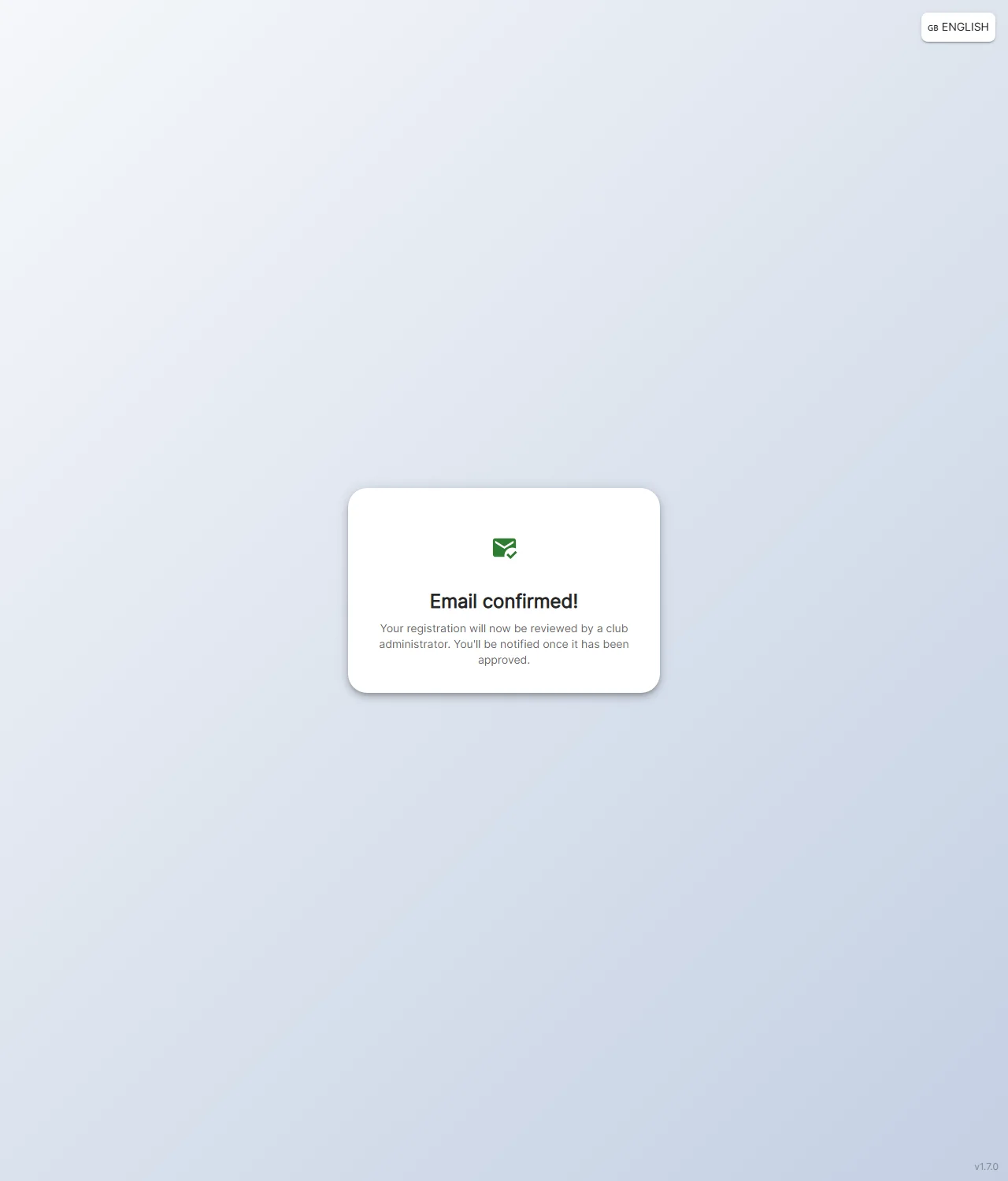
Only after clicking the confirmation link does the registration enter the review queue. An invalid, already-used, or expired link is shown as an error instead.
✅ Reviewing & Approving Registrations
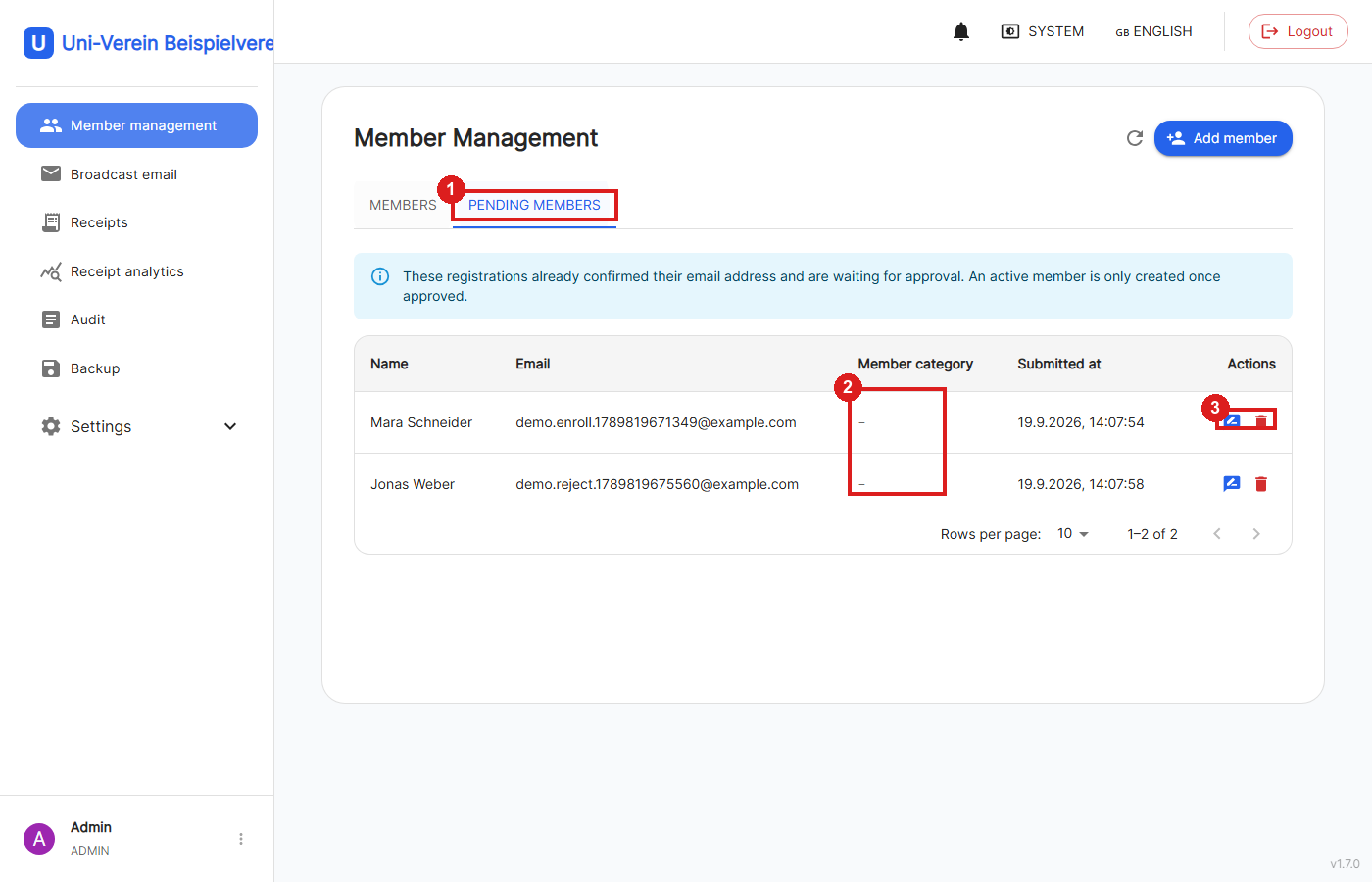
Confirmed registrations show up under Member management in the "Pending members" tab, visible to every logged-in role, not just Admin. The tab appears automatically as soon as there's something to review and disappears again once the list is empty.
1: Switch between existing and pending members.
2: Shows a "–" until a member category has been assigned.
3: The pencil icon opens the review dialog, the trash icon rejects the registration.
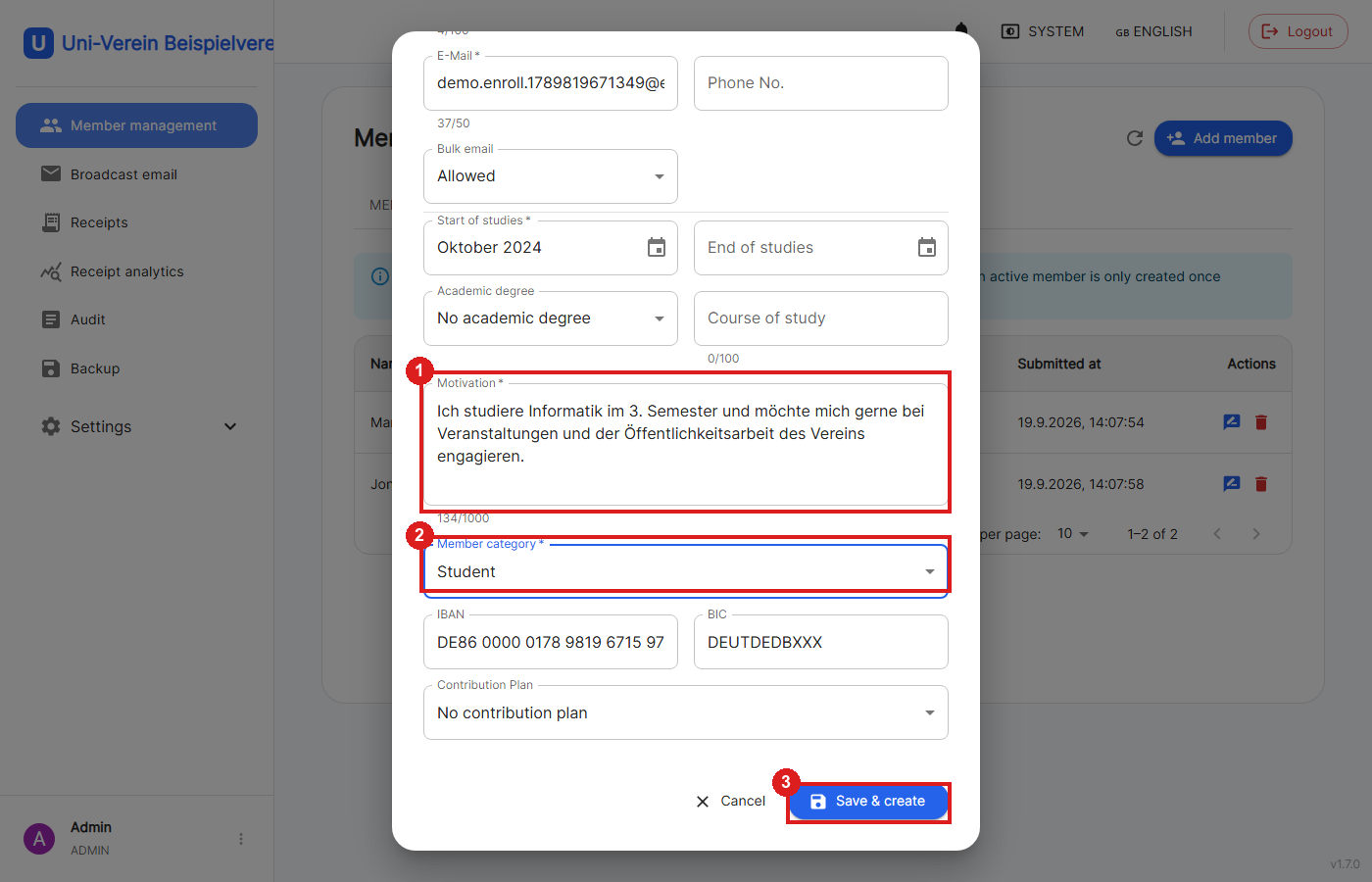
The review dialog lets you adjust any of the applicant's details before creating the member.
1: The motivation the applicant provided.
2: Member category is a required field and must be assigned here by the reviewer; the registration can't be saved without it.
3: "Save & create" creates the regular member, and the registration immediately disappears from the list.
❌ Rejecting
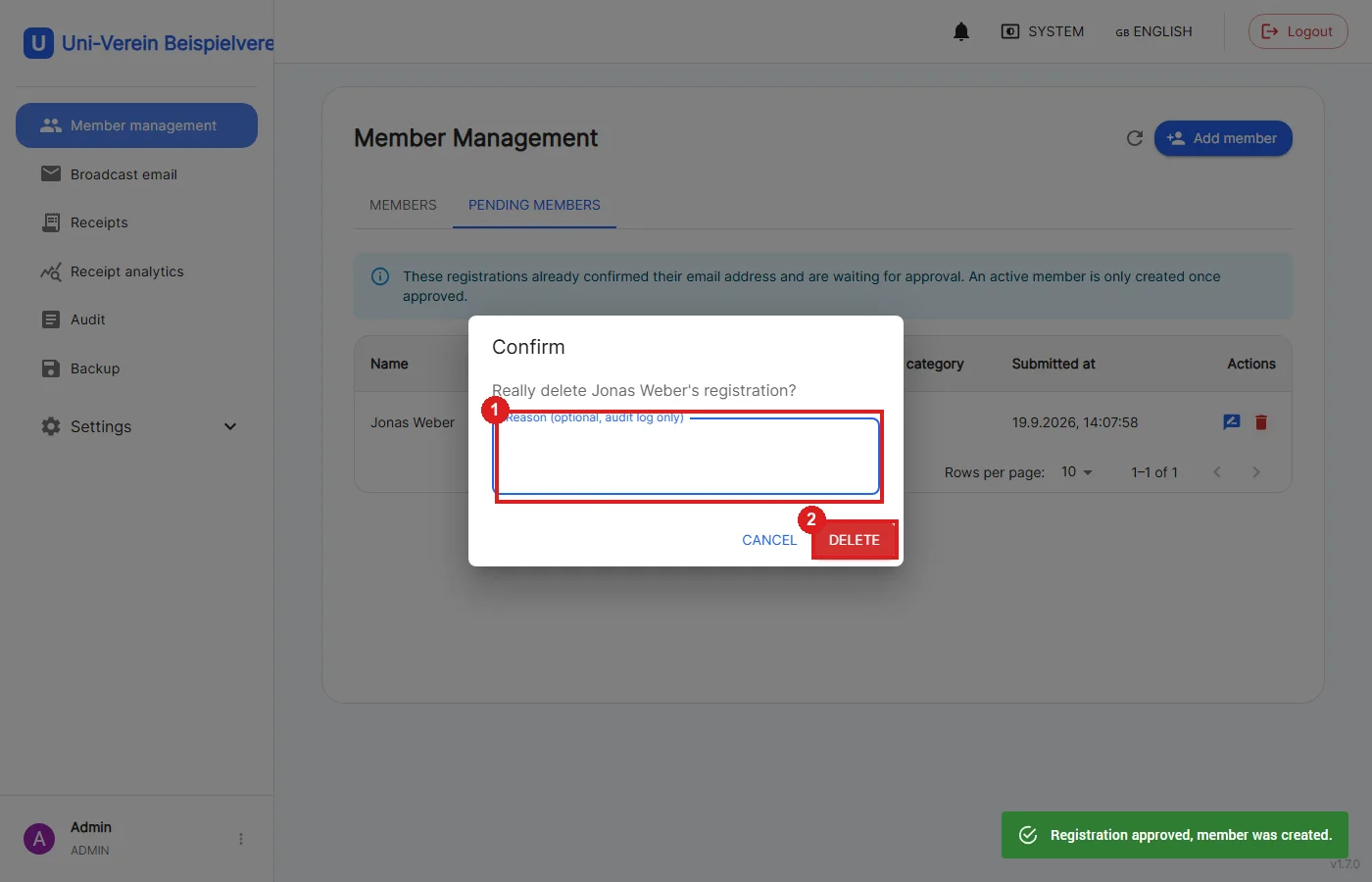
The trash icon in the list rejects a registration without creating a member.
1: A reason can optionally be given, which is only stored in the audit log.
2: Once confirmed, the registration is permanently deleted.
🔔 New-Enrollment Notification
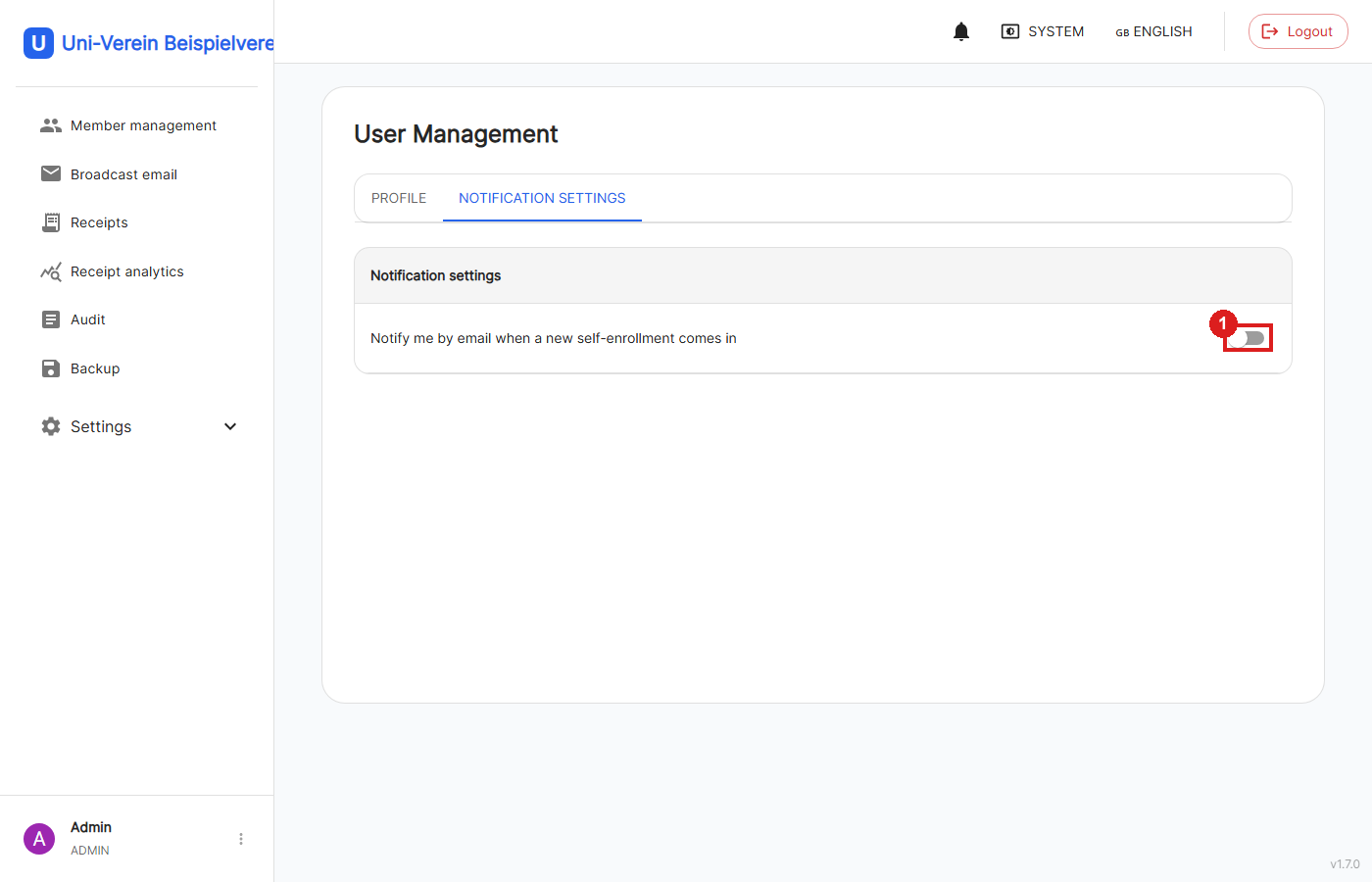
Under your own profile → Notification settings, any logged-in user can opt in to an email notification, regardless of role.
1: Off by default when enabled: an email is sent for every newly confirmed registration, so it isn't only noticed the next time someone logs in.
Permissions
| Action | Not logged in | User / Finance Manager / Admin | Admin only |
|---|---|---|---|
| Fill out & submit the form | ✅ | – | – |
| Confirm email | ✅ | – | – |
| View & review pending registrations | ❌ | ✅ | ✅ |
| Approve or reject a registration | ❌ | ✅ | ✅ |
| Enable new-enrollment notification | ❌ | ✅ | ✅ |
| Enable/disable self-enrollment | ❌ | ❌ | ✅ |