📎 Receipt Management
🧾 Overview
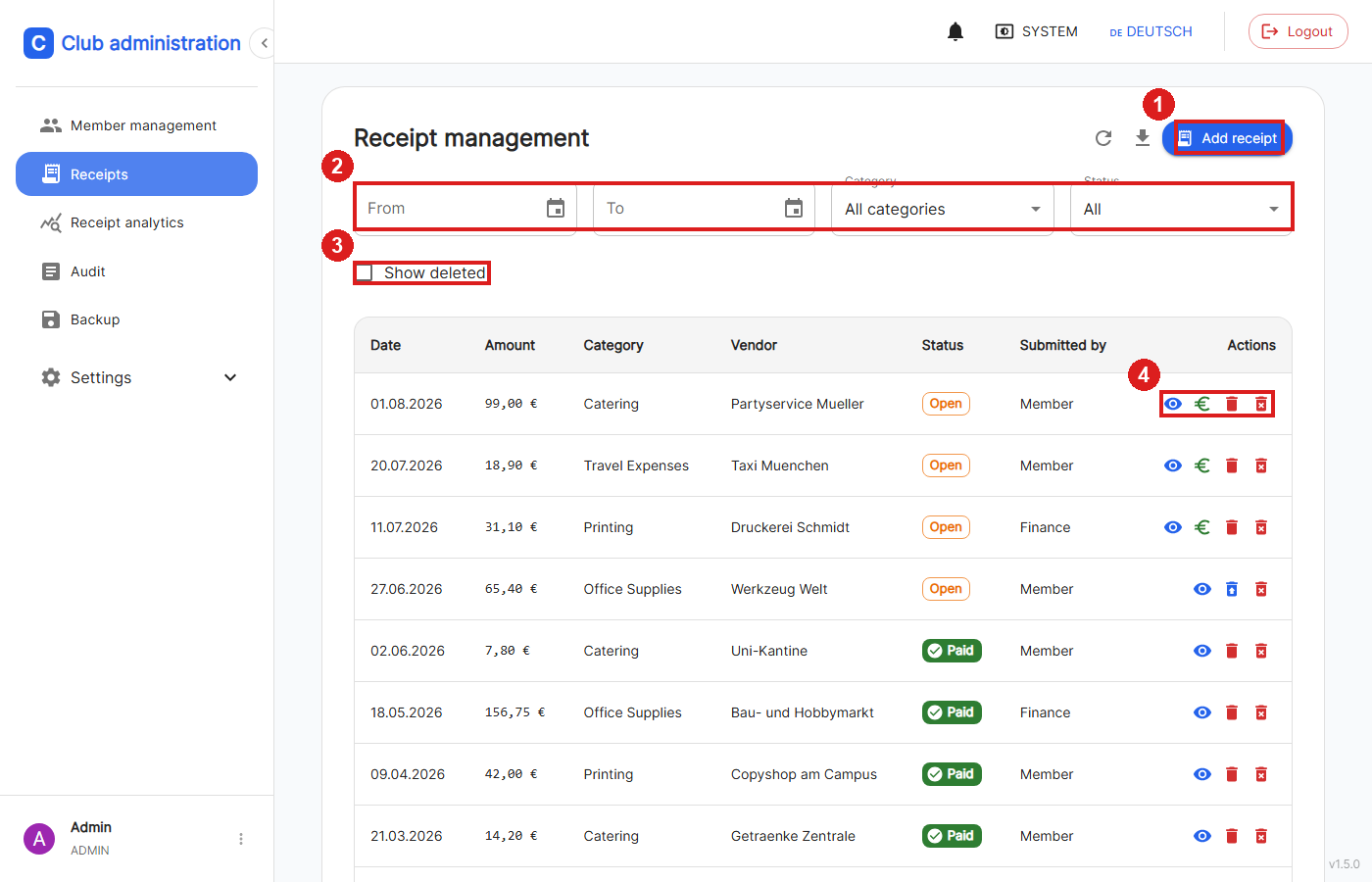
Under "Receipts", all roles (User, Finance Manager, Admin) can see submitted receipts: regular users only see their own, while Admin and Finance Manager see all receipts, including who submitted them ("Submitted by").
1: "Add receipt" creates a new receipt.
2: The list can be filtered by date range, category, and status (Open/Paid).
3: Admin only: also shows deleted receipts in the list.
4: Actions per receipt: View, mark as paid (Admin/Finance Manager only), delete, permanently delete (Admin only).
🤖 Submitting a Receipt & OCR Scan
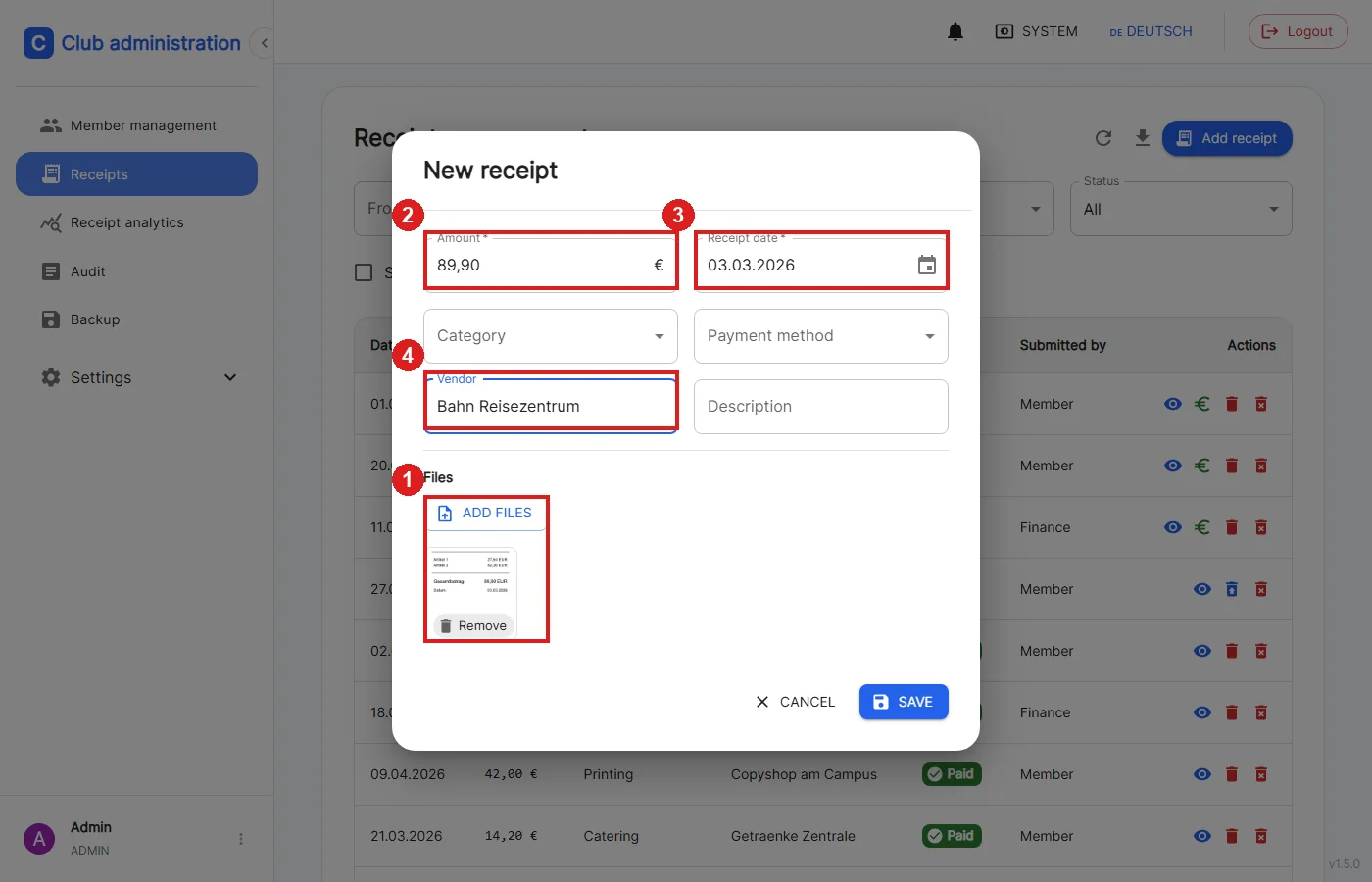
When adding a receipt, a photo or PDF of the till receipt can be attached.
1: Upload a file via "Add files"; if the app is installed (see Install the app), a dedicated camera button is also available.
Directly in the browser - without a server request - the receipt is scanned using on-device OCR and automatically fills in:
2: the amount
3: the receipt date
Fields that are already filled in are not overwritten.
4: Vendor, category, payment method, and description can additionally be entered manually.
The payment method can only be set by Admin/Finance Manager.
✅ Marking as Paid
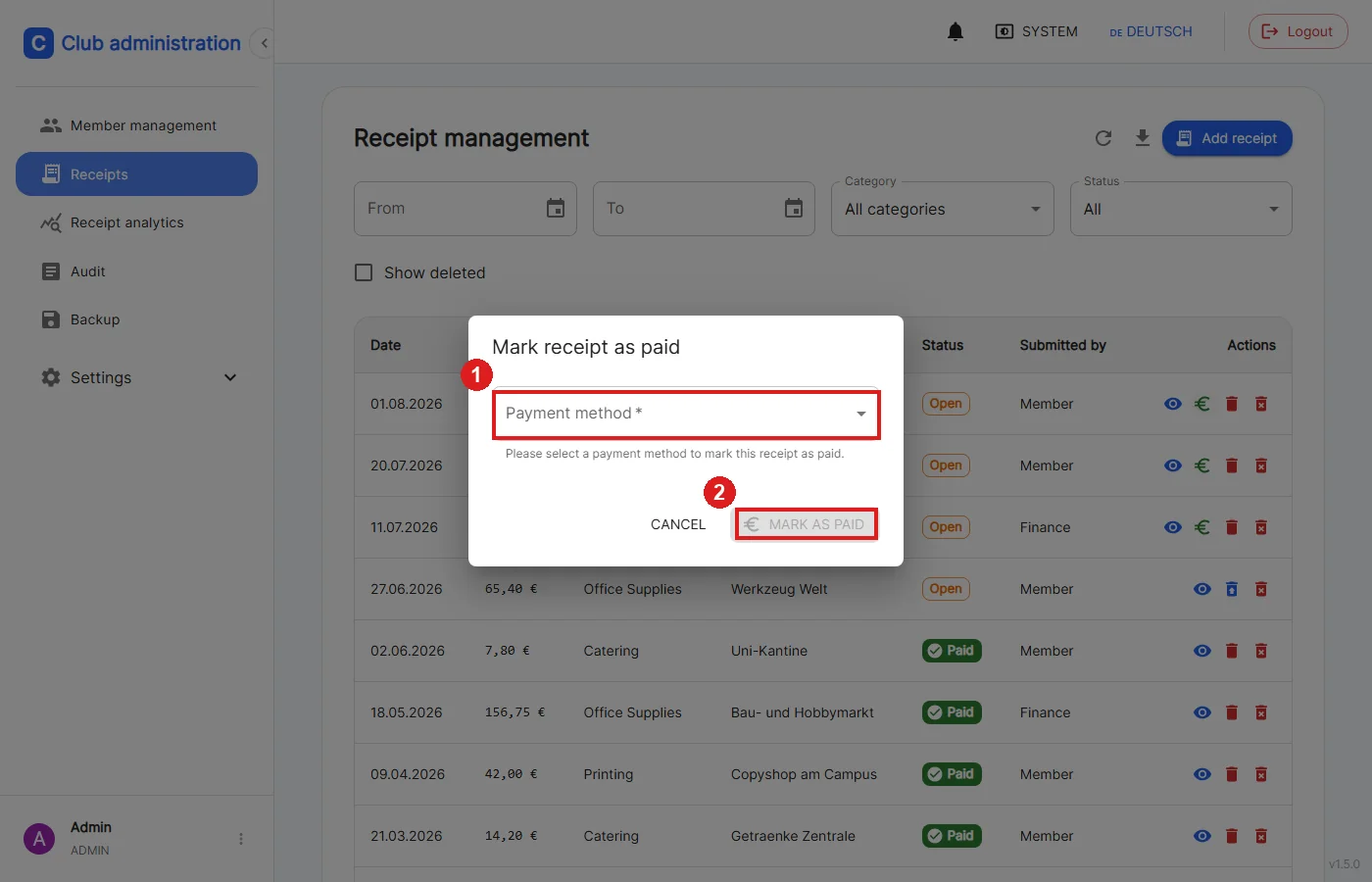
Only Admin and Finance Manager can mark receipts as paid.
1: If no payment method has been set yet, it must be selected here.
2: Only then can the receipt be confirmed as paid; this cannot be undone afterwards.
Regular users can only edit or delete their own, not-yet-paid receipt within 15 minutes of submitting it.
🗑️ Deleting & Restoring
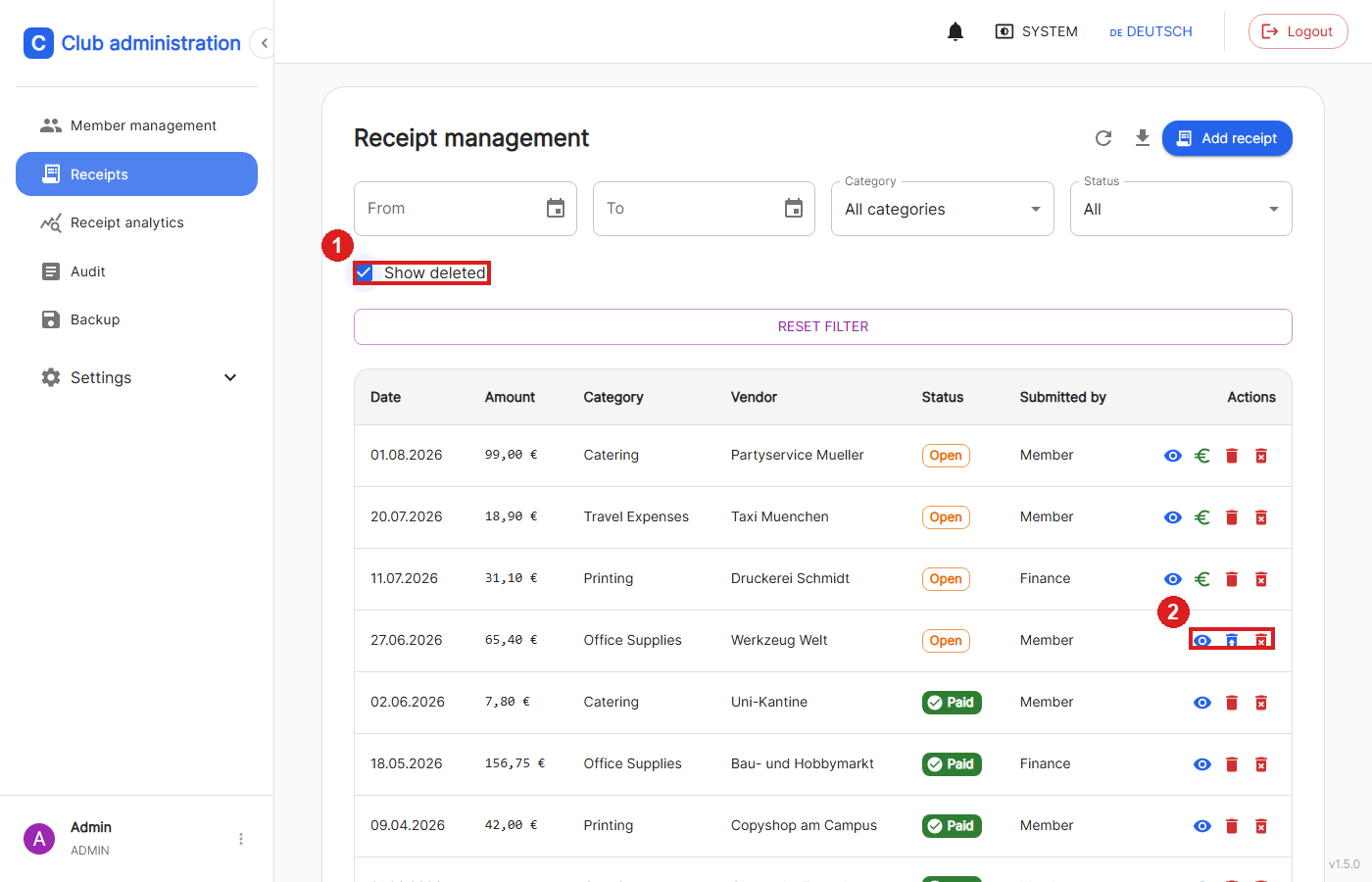
Deleted receipts are initially only soft-deleted (like a recycle bin).
1: "Show deleted" (Admin only) also displays deleted receipts in the list.
2: For deleted receipts, a restore icon replaces the edit/delete button next to it, the receipt can be permanently and irrevocably, including all attached files deleted.
📤 Export as ZIP
Using the download icon in the top right of the receipt overview, Admin and Finance Manager can export the currently filtered receipts.
The export contains a CSV overview as well as all attached files in a ZIP file.