🎬 Quick Start
🔑 Login with Default Admin Credentials
Username: Admin
Password: admin123
➕ Creating Users
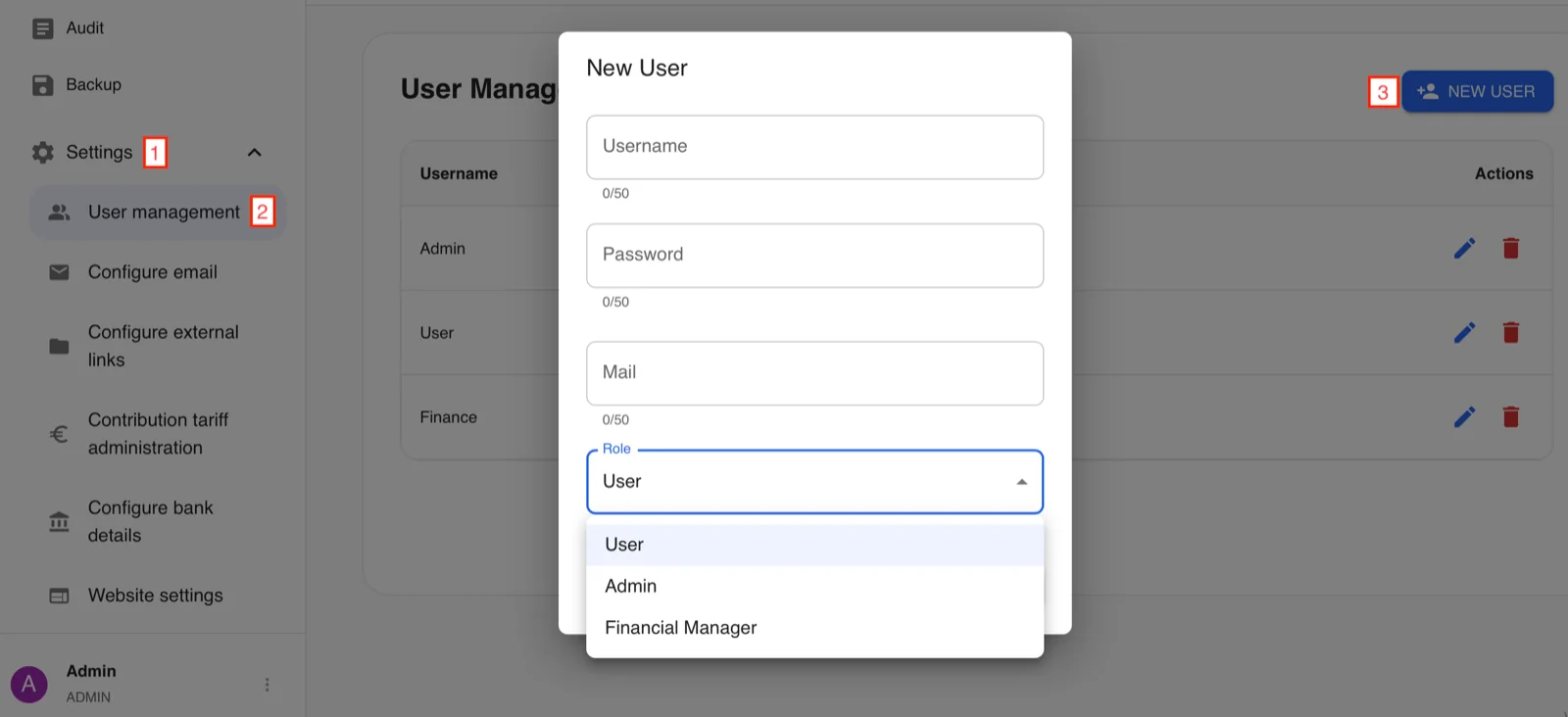
Settings → User Management → New User
User: Name can be chosen freely
Password: at least 11 characters
Permissions per user role:
| Feature | User | Finance Manager | Admin |
|---|---|---|---|
| Member management (create, edit, delete) | ✅ | ✅ | ✅ |
| Restore deleted members | ❌ | ❌ | ✅ |
| Broadcast mail | ✅ | ✅ | ✅ |
| SEPA export | ❌ | ✅ | ✅ |
| View contribution payments | ✅ | ✅ | ✅ |
| Edit contribution payments | ❌ | ✅ | ✅ |
| Submit receipts | ✅ | ✅ | ✅ |
| Manage receipts (all receipts, mark as paid) | ❌ | ✅ | ✅ |
| Restore deleted receipts | ❌ | ❌ | ✅ |
| Files | ✅ | ✅ | ✅ |
| View audit logs | ❌ | ❌ | ✅ |
| Create and restore backups | ❌ | ❌ | ✅ |
| Settings | ❌ | ❌ | ✅ |
Create the required users for production use (the Admin account should not be used in production!).
❗️IMPORTANT: The Admin must be renamed & the Admin password must be changed. ❗
→ In the end, there should be at least 1x Admin, 1x Finance Manager, and 1x User
⚙️ Configuring the Remaining Settings
E-Mails
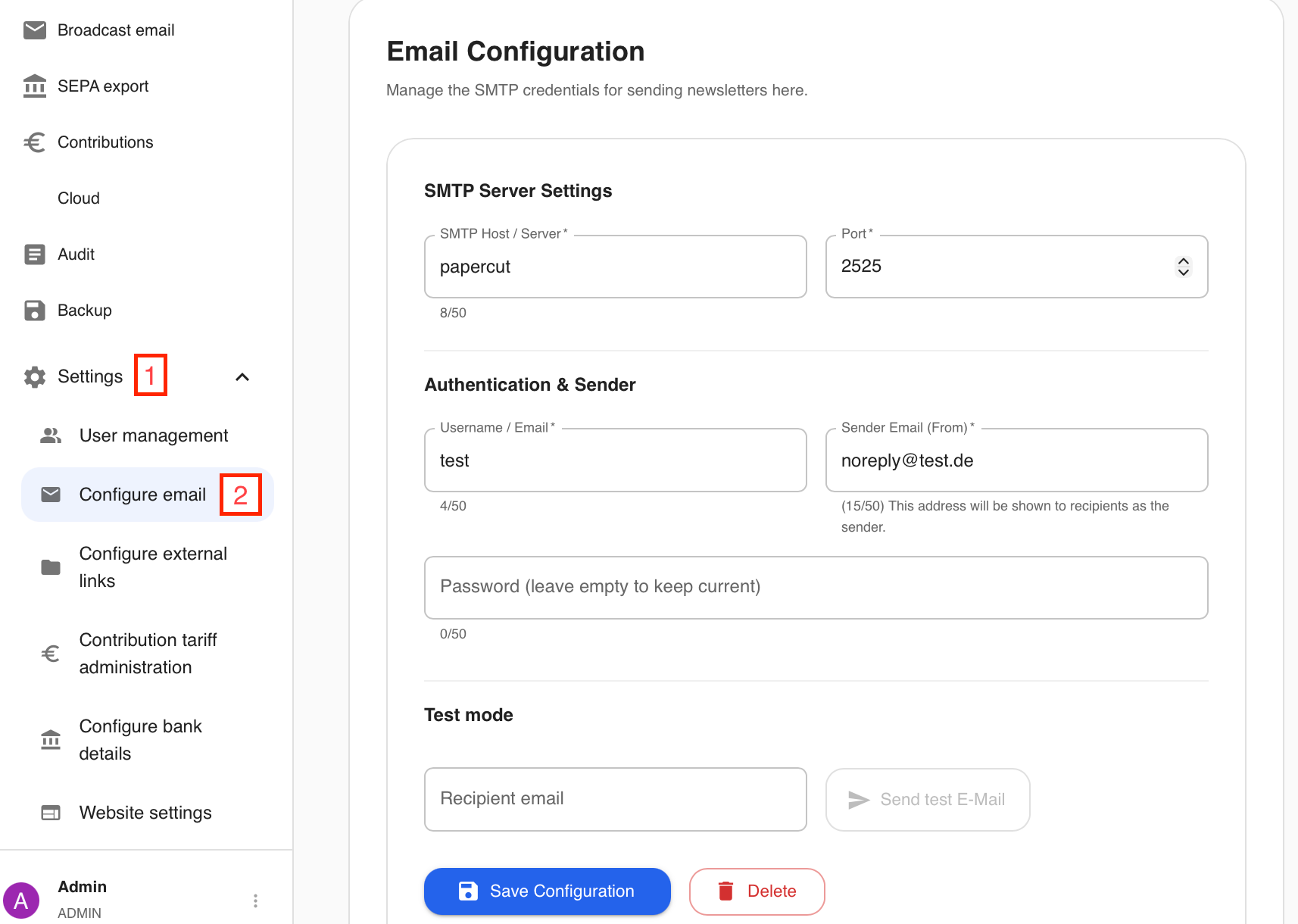
Settings → Configure E-Mail
This information is required if the "Broadcast Mail" feature is to be used.
SMTP host, server, username, and password must be obtained from your mail provider.
The sender e-mail can be chosen freely and will be displayed to recipients as the sender.
Test mode:
A test e-mail is sent to the desired recipient to verify that the settings configured above are correct.
Configure External Links
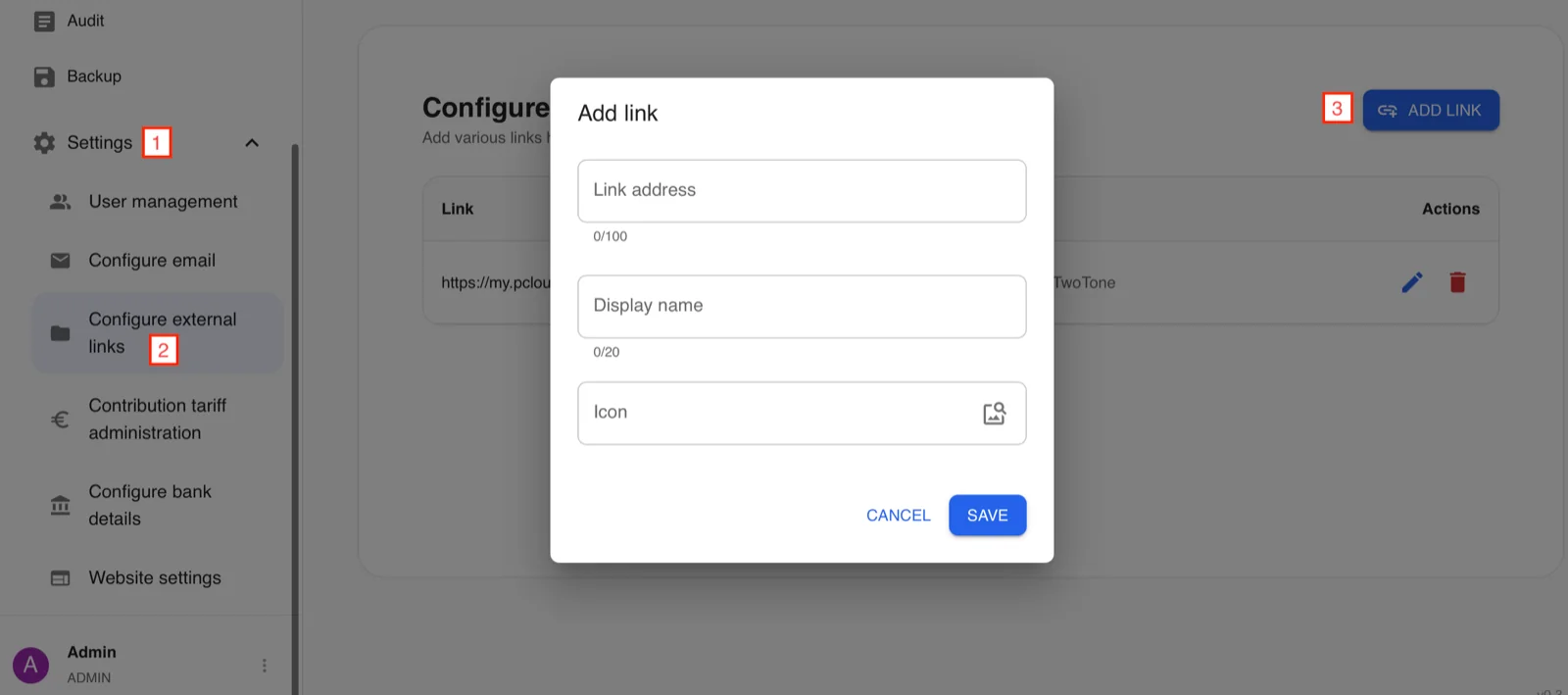
Settings → Configure External Links
A link to an external page can be added here.
There are no restrictions, except that the link must not exceed 100 characters.
Link address: the external page to be used
Display name: the name under which the page appears in the menu
Icon: can be selected from a list for personalisation
Configure Contribution Plan Administration
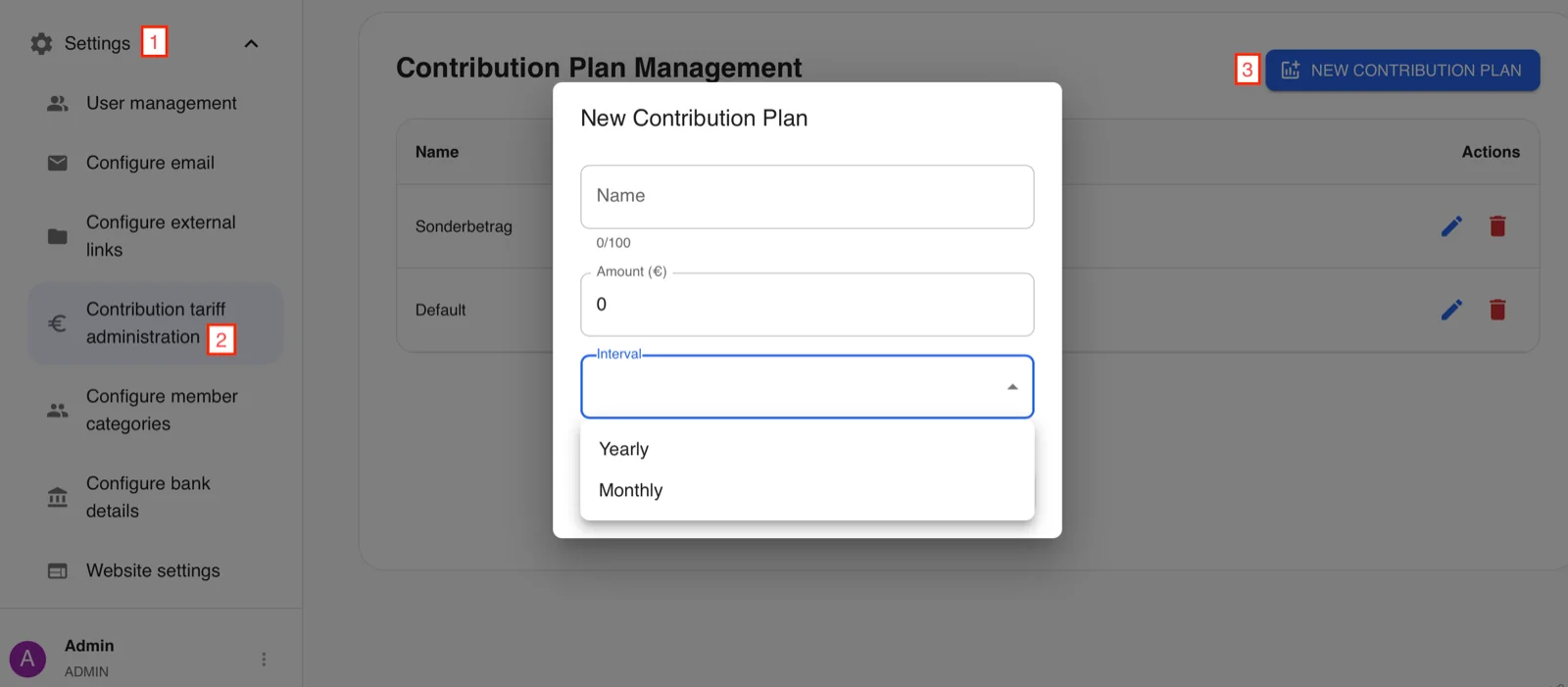
Settings → Contribution Plan Administration
The tariffs can be named freely and can therefore represent both regular membership fees and higher contributions from supporting members.
Intervals:
Monthly: Creates an entry under "Contributions" and in the SEPA export on the 1st of each month.
Annual: Creates an entry under "Contributions" and in the SEPA export on 01.01. of each year.
Manage Member Categories
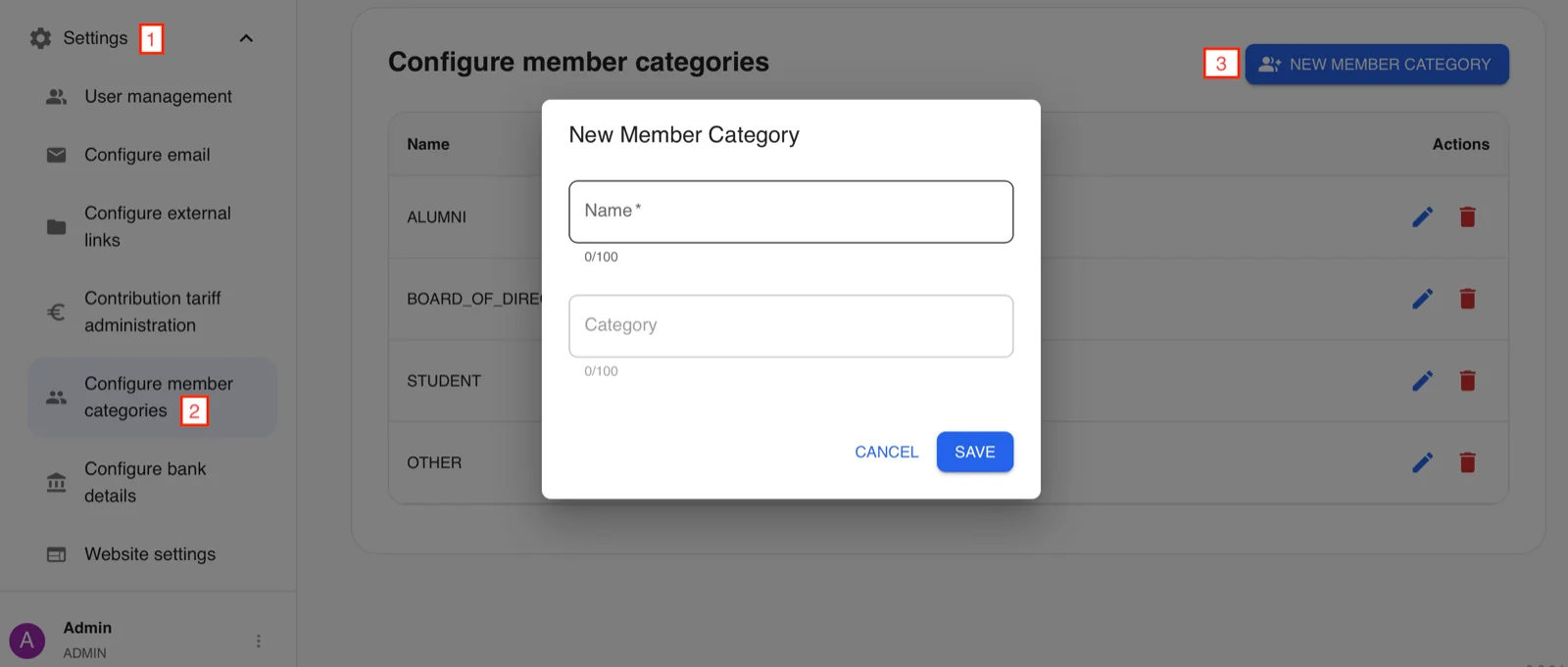
Settings → Manage Member Categories
Four categories are predefined and are automatically translated when the language is changed: "ALUMNI", "BOARD OF DIRECTORS", "STUDENT", "OTHERS"
These can be deleted if they are not needed.
Custom categories can also be created; however, these will not be translated automatically.
Manage Receipt Categories
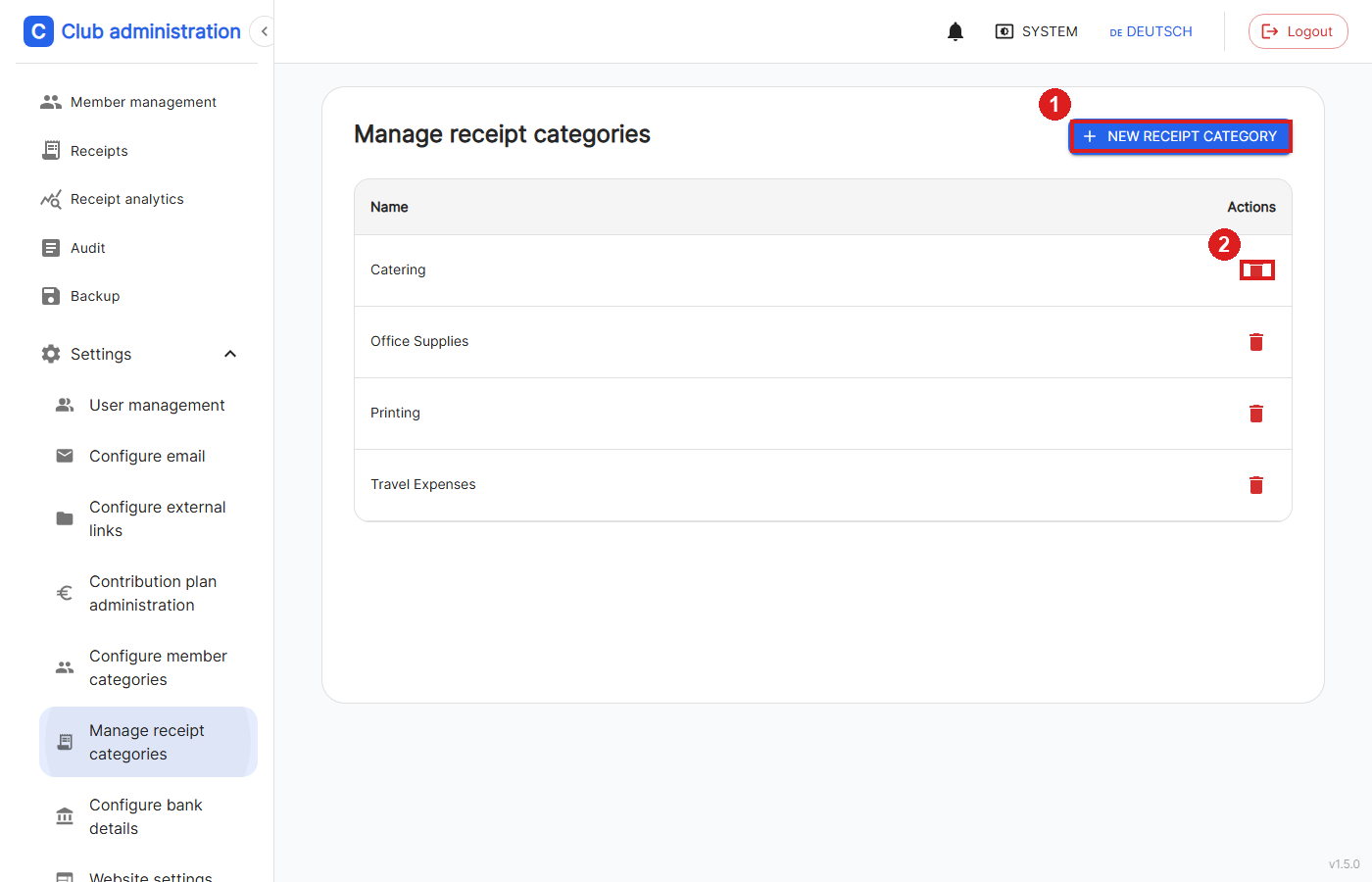
Settings → Manage Receipt Categories
Here you can create categories for Receipt Management, e.g. office supplies, travel expenses, or catering.
A category can only be deleted if no receipt is currently assigned to it.
Configure Bank Details
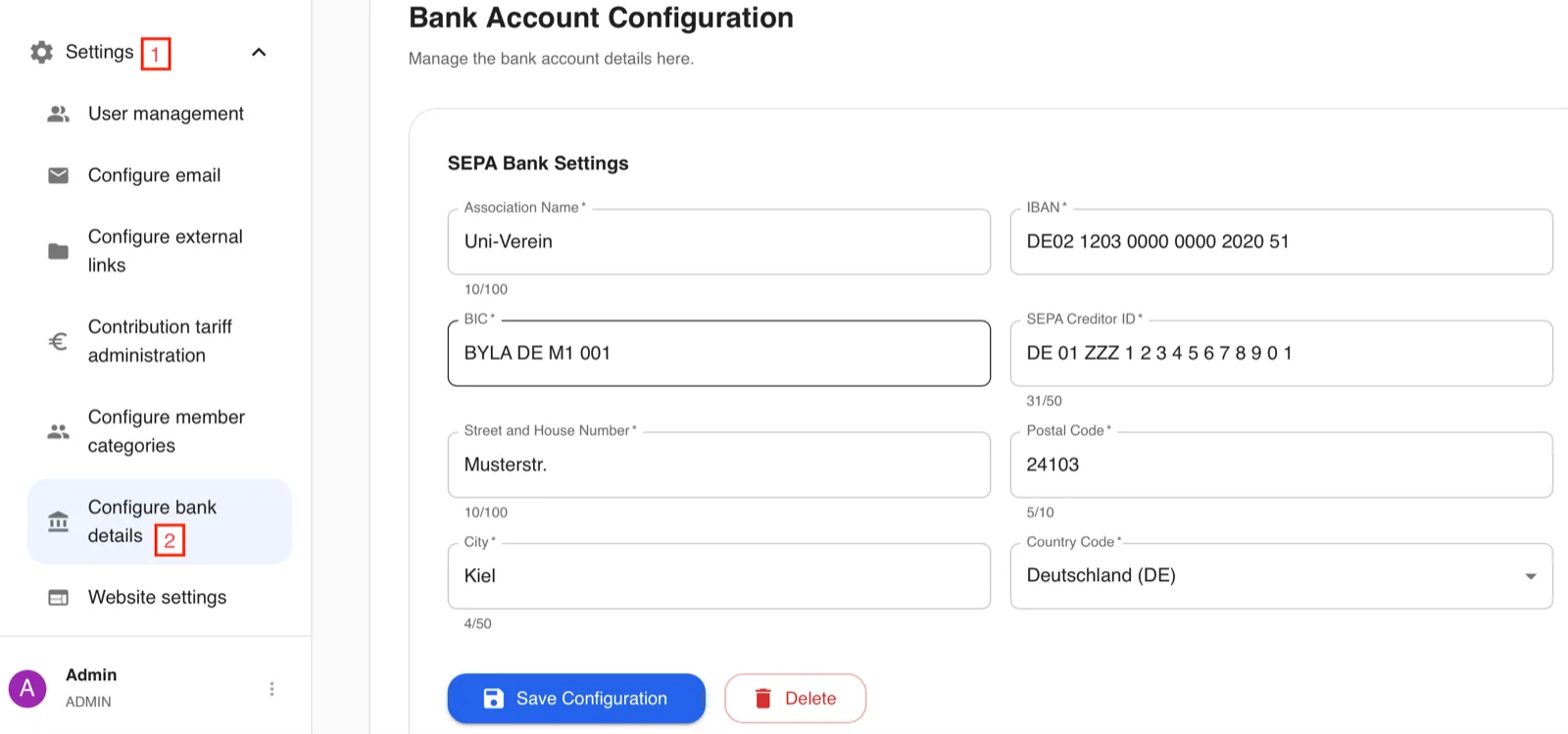
Settings → Configure Bank Details
The bank details are required to generate a valid SEPA export.
If this feature is not used, the fields can simply be left empty.
Website Settings
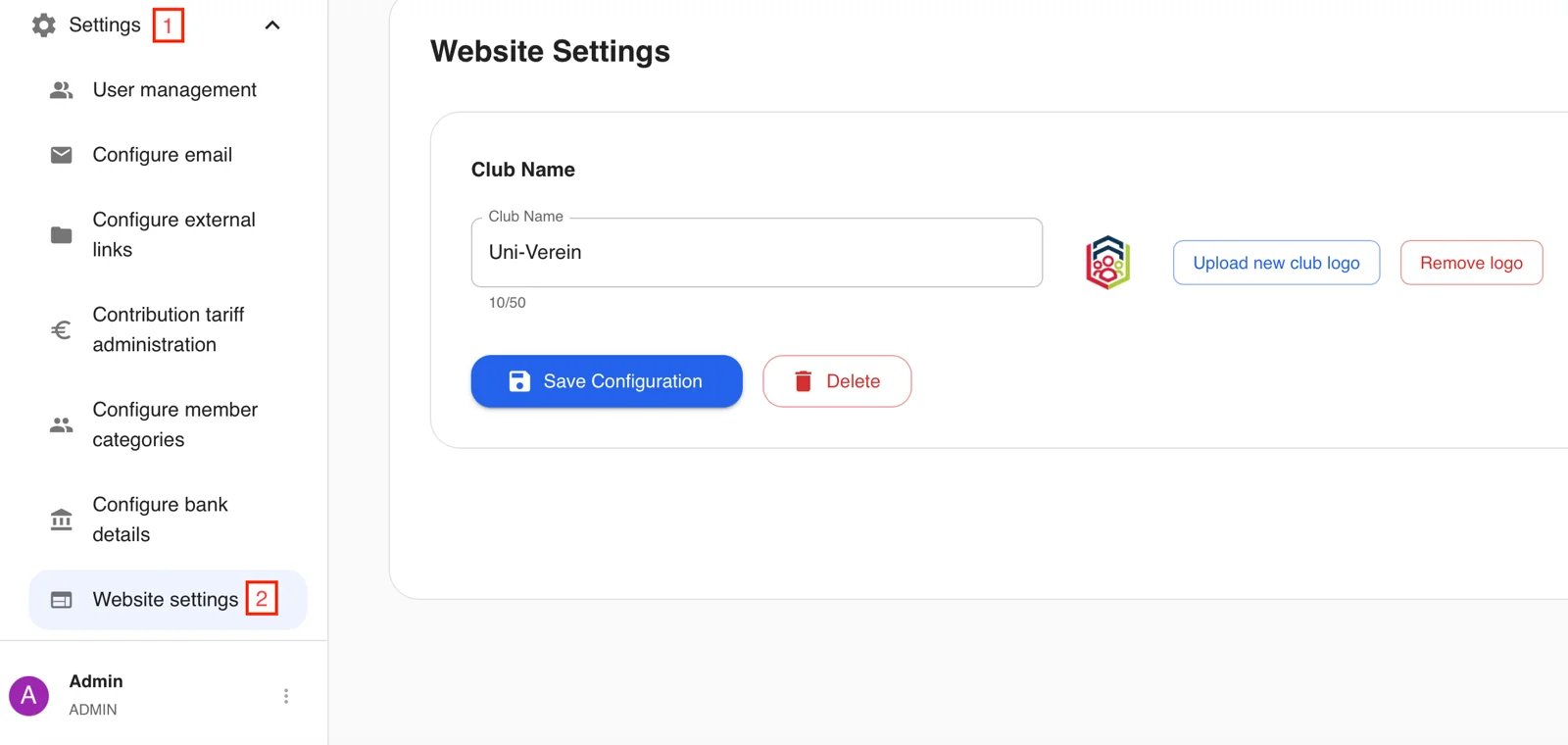
Settings → Website Settings
This page allows for personalisation.
The club name and, if applicable, the club logo can be changed here.
The logo must be uploaded as a .png or .jpg file; the size will be reduced to 100x100px.
👥 Adding Members
Importing existing data as a .csv file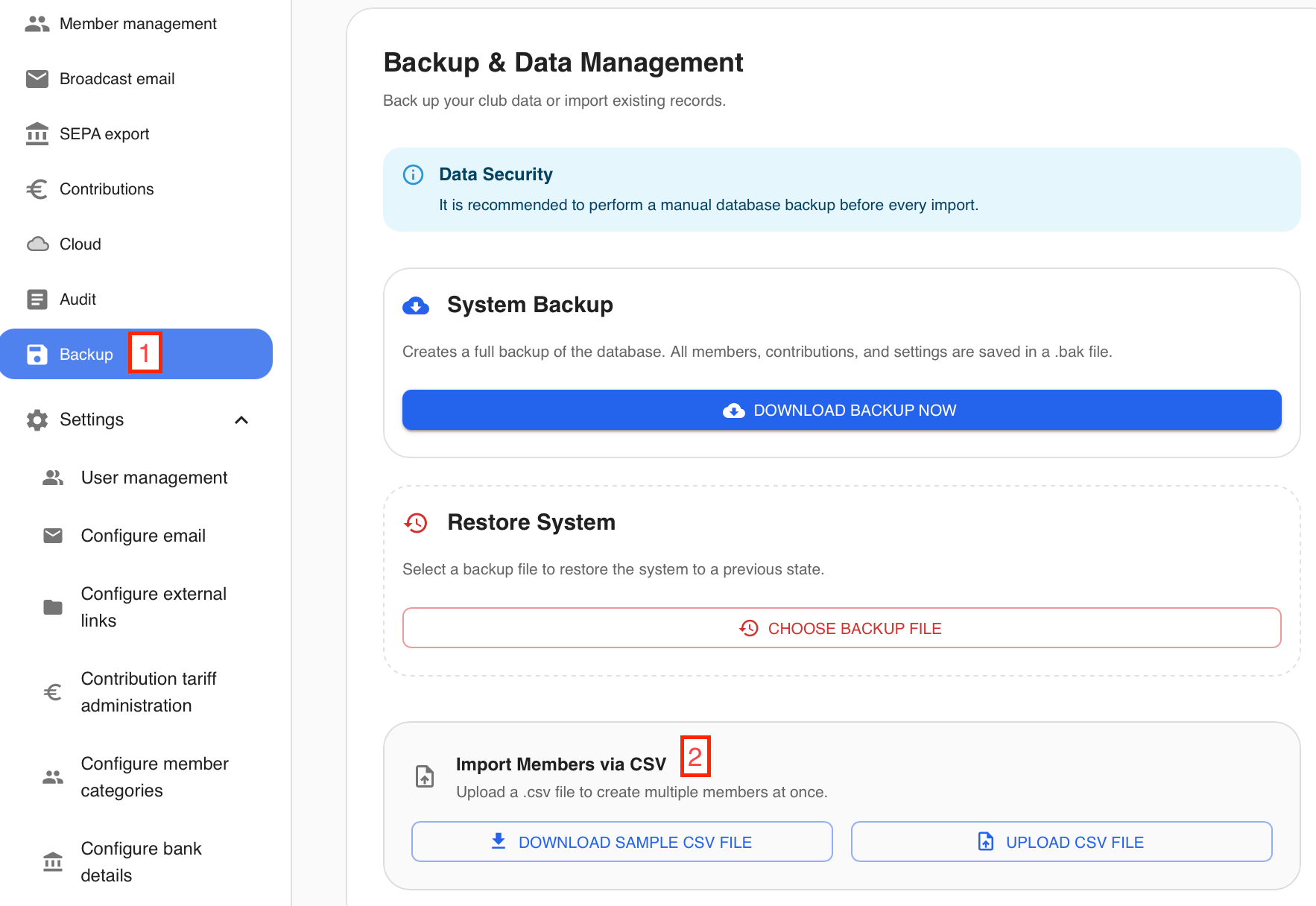
Backup → Import Members via CSV
An existing member list can be imported. A sample CSV file can be downloaded to illustrate the required format. The table must contain the following columns, separated by a semicolon (.csv file):
| Column | German Translation | Required | Prescribed format / general requirements |
|---|---|---|---|
| member-number | Mitgliedsnummer | Yes | must not be negative |
| gender | Geschlecht | Yes | allowed: MALE, FEMALE, DIVERS |
| Name | Nachname | Yes | |
| first name | Vorname | Yes | |
| middle name | Zweiter Vorname | No | |
| birthday | Geburtstag | Yes | Format: dd.mm.yyyy; must be in the past |
| phone-number | Handynummer | No | |
| bulk mail | Rundmail | Yes | allowed: ALLOWED, NOT_ALLOWED (indicates whether the member wishes to receive emails) |
| Yes | Format: standard email format (xx@xx.xx) | ||
| street and number | Straße und Hausnummer | Yes | |
| ZIP-code | Postleitzahl | Yes | must be a five-digit number |
| city | Stadt | Yes | |
| country code | Ländercode | Ja | Code must consist of two uppercase letters. (ISO 3166 alpha 2) |
| study-start | Studienbeginn | Yes | Format: dd.mm.yyyy |
| study-end | Studiumsende | No | Format: dd.mm.yyyy; must not be before study-start |
| academic degree | Studienabschluss | No | |
| course of study | Studienfach | No | |
| Task within the club | Aufgabe im Verein | No | allowed: MEMBER, CHAIRMAN, SECOND_CHAIRMAN, JUNIOR_BOARD_MEMBER, CHIEF_FINANCE_OFFICER, WEBSITE_MANAGER, ALUMNI_OFFICER, STUDENT_COUNCIL_REPRESENTATIVE |
| university status | Hochschulstatus | No | allowed: STUDENT, ALUMNIS, OTHERS |
| entry-date | Eintrittsdatum | Yes | Format: dd.mm.yyyy |
| exit-date | Austrittsdatum | No | Format: dd.mm.yyyy; must not be before entry-date |
| IBAN | IBAN | No | Format: standard IBAN format |
| BIC | BIC | No | Format: standard BIC format |
| sepa-consent | SEPA-Zustimmung | No | Format: dd.mm.yyyy |
| contribution-amount | Beitragstarif | No | number must not be negative |
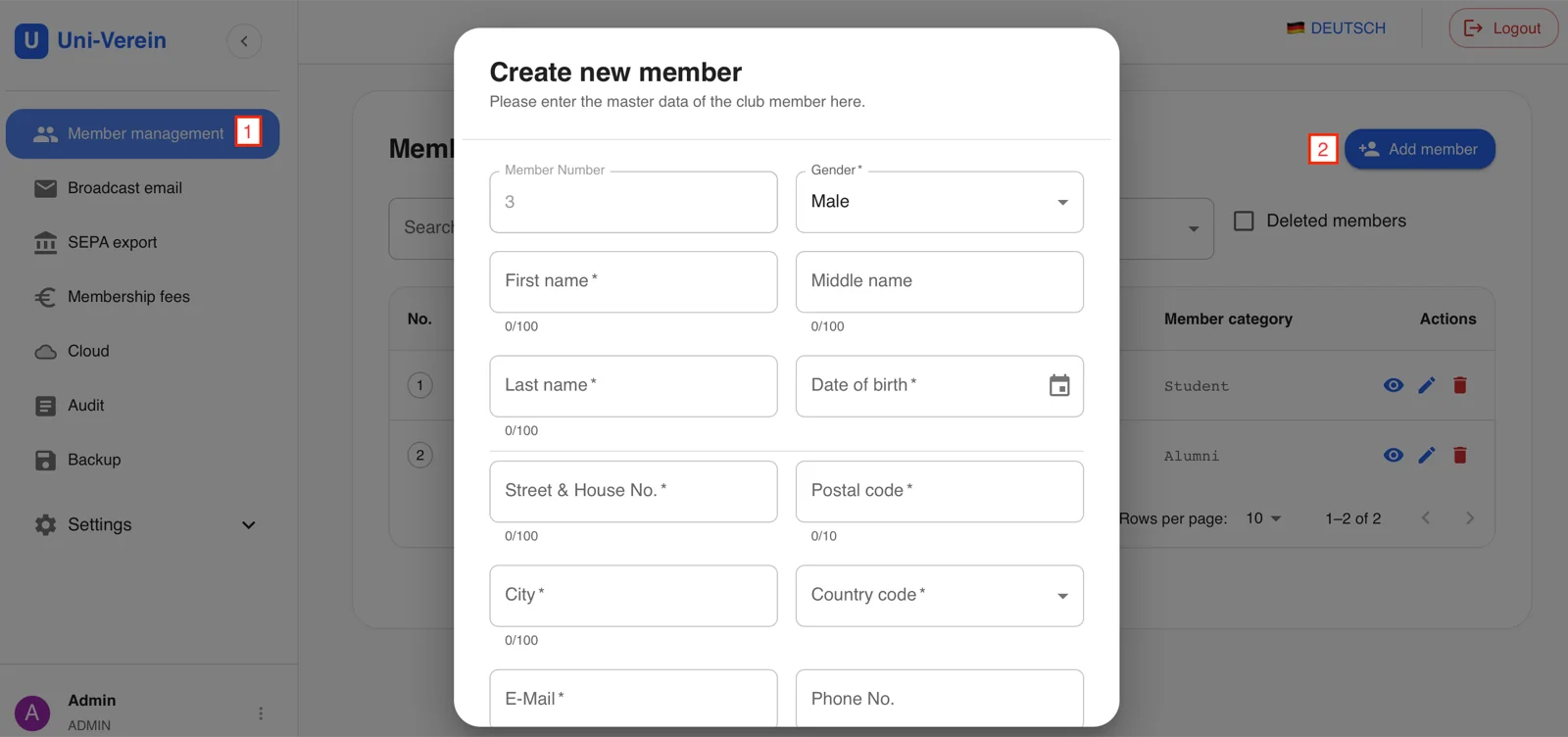
Member Management → Add Member
Members can also be added manually. Required fields are marked with an * and the format requirements are identical to those for the import.