💶 Income
📋 Overview
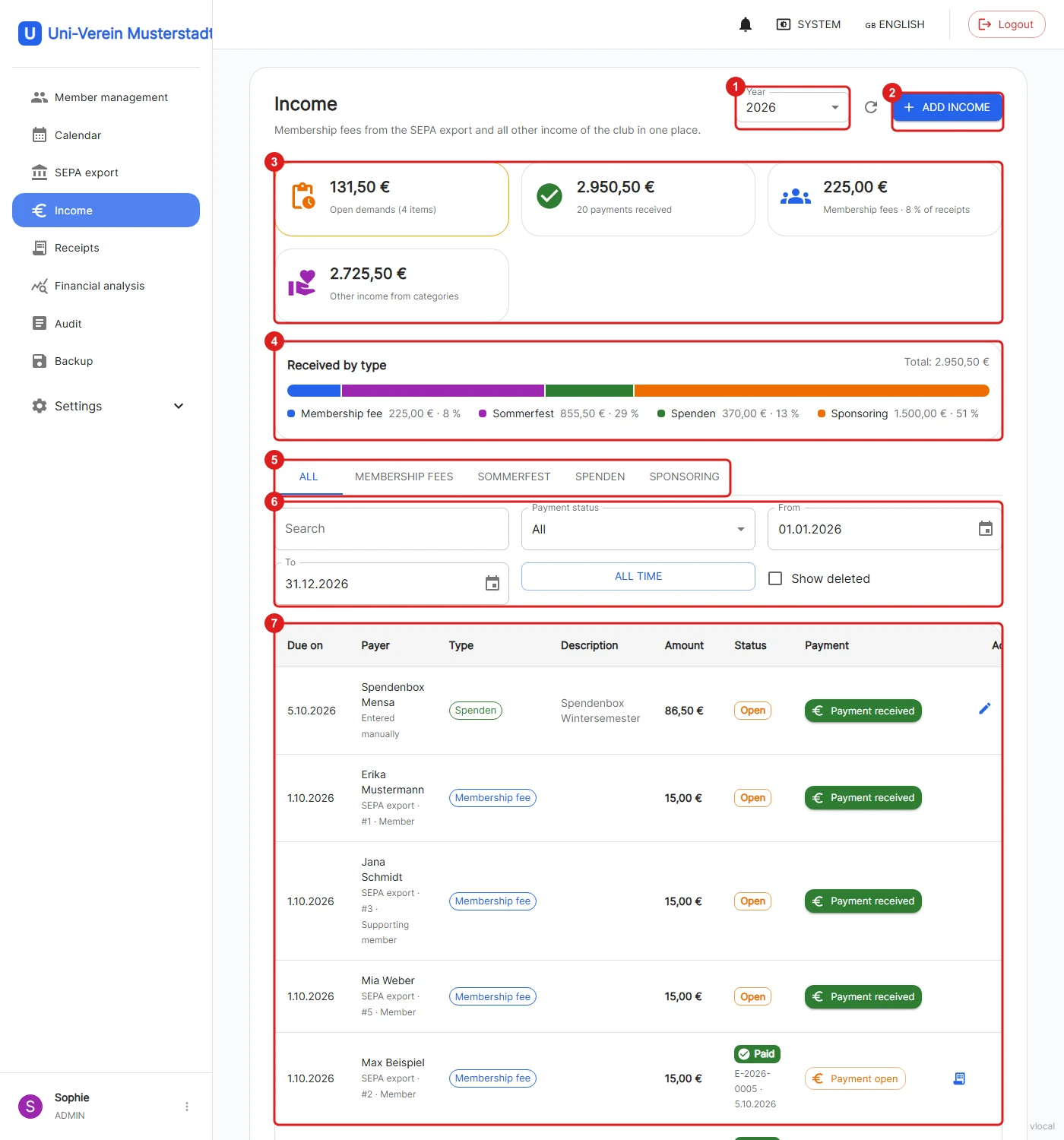
The "Income" menu item has replaced the former "Contributions" page. All roles can view the income, but only Admins and Finance Managers can edit it (see Permissions). The page also works without a configured bank connection.
1: The year the page refers to. The current year is selected by default. "All years" or "Custom range" (From/To) change the period, "All time" in the filters removes the restriction completely.
2: "Add income" creates a further income, e.g. a donation (see Recording further income).
3: The key figures show the open demands, the payments already received, the sum of membership fees including their share of the receipts, and the further income from the categories.
4: "Received by type" splits the payments received into membership fees and income categories.
5: The tabs: "All", the fixed "Membership fees" and an own tab for every income category (e.g. "Donations"). Admins and Finance Managers create the categories under Manage income categories.
6: Filters by search term, payment status (Open/Paid) and period. Admins can also "Show deleted".
7: The list with due date, payer, type, description, amount, status and the actions.
👥 Membership fees
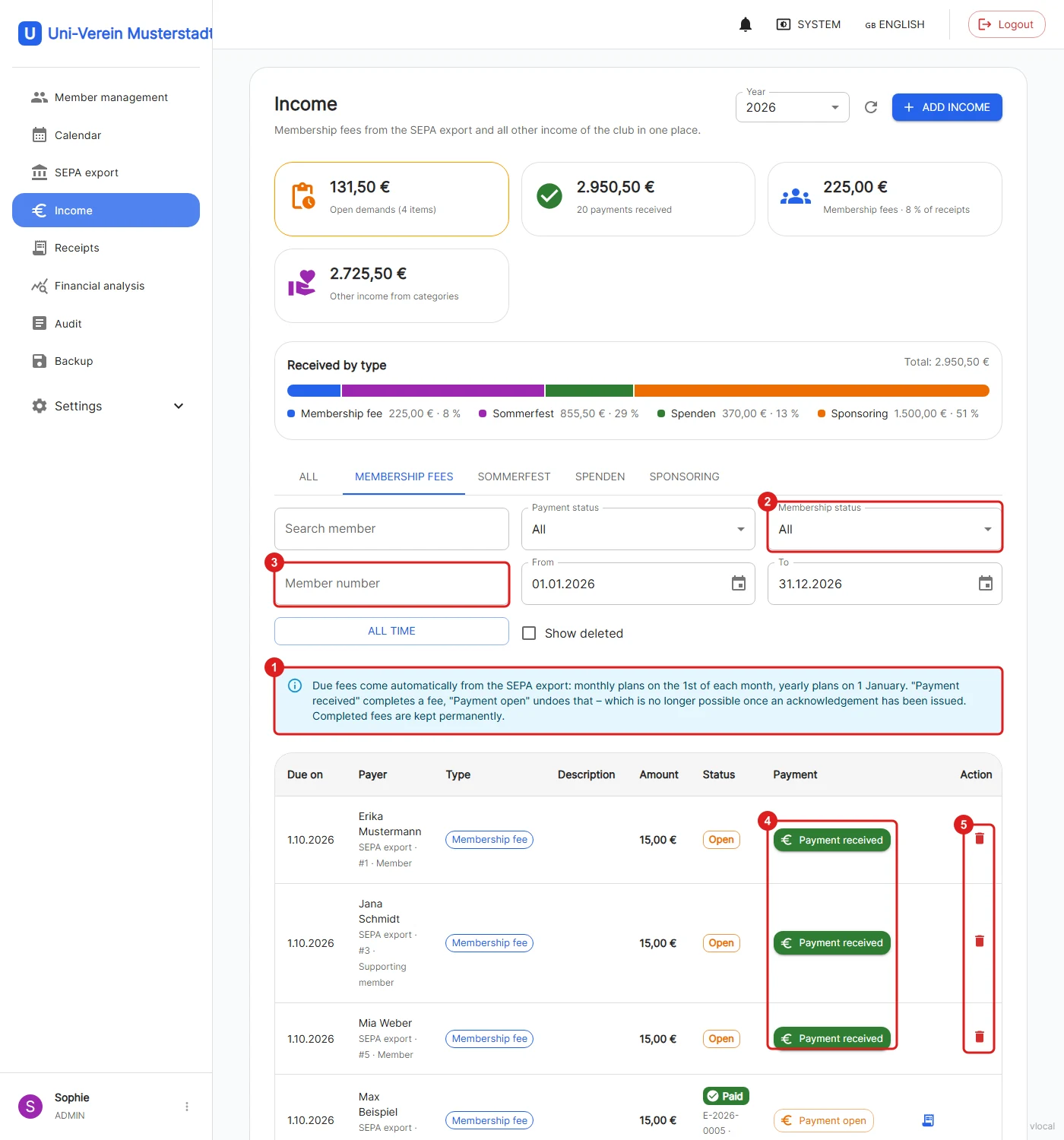
The "Membership fees" tab shows the fees from the SEPA export. They are created automatically: monthly plans on the 1st of each month, yearly plans on 1 January.
1: The hint recalls the rules: "Payment received" completes a fee, "Payment open" undoes that. This is no longer possible once an acknowledgement has been issued. Completed fees are kept permanently and are no longer deleted automatically after 14 days.
2: Filter by membership status (member or supporting member).
3: Search by member number. The number is also shown below the name in the list and makes it easier to assign fees.
4: "Payment received" books a fee as paid (see Book a payment).
5: The trash icon deletes an open fee, e.g. after a returned direct debit (see Delete & restore).
➕ Recording further income
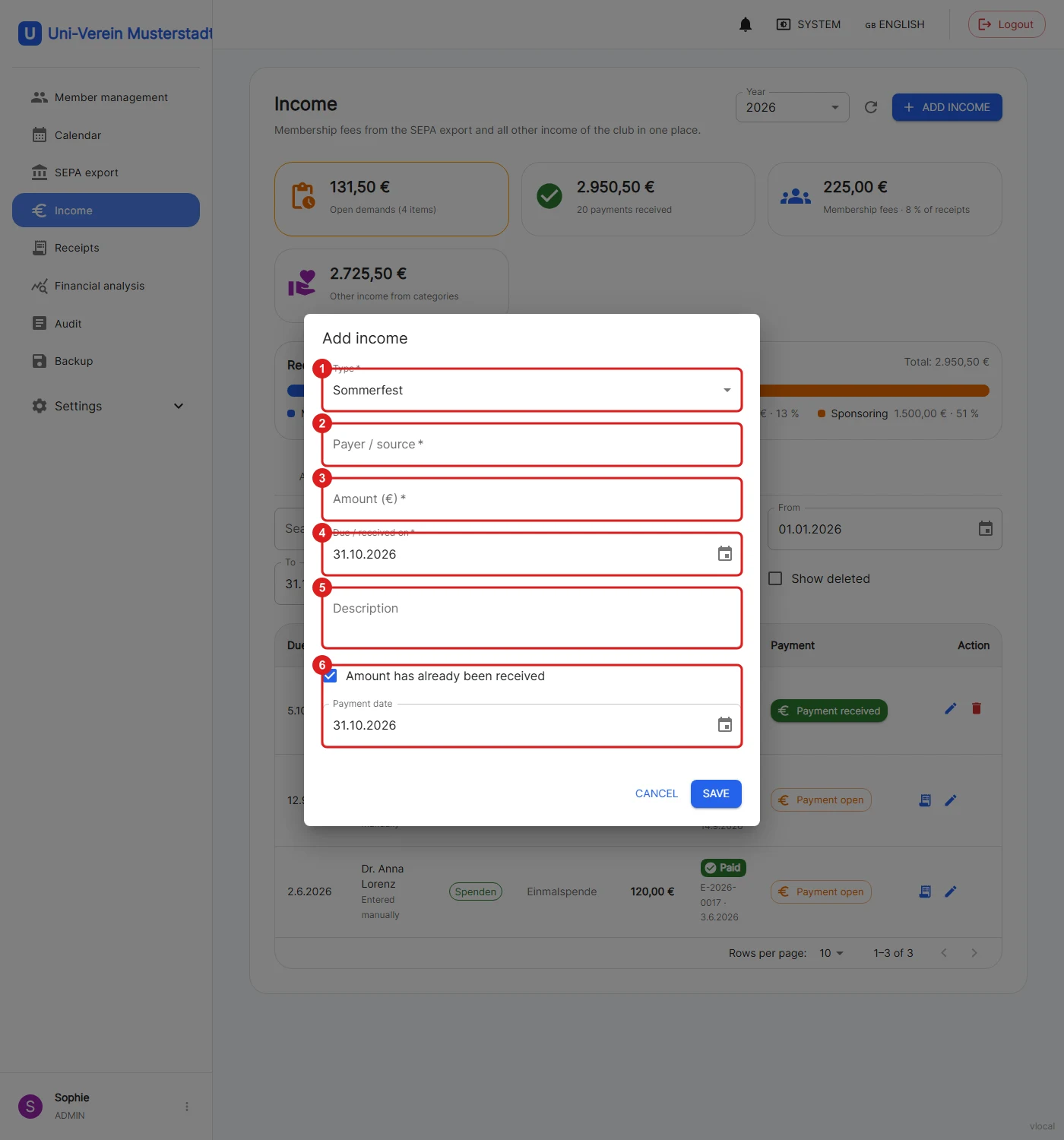
Donations, sponsoring or revenue from events are created with "Add income". If there is no income category yet, the dialog says that an Admin or Finance Manager has to create one first.
1: The type of income, i.e. the income category. It determines the tab and the tax area in the EÜR.
2: Payer or source, e.g. a person, company or event.
3: The amount, at most €1,000,000.
4: The date the income is due or was received.
5: An optional multi-line description.
6: If the money has already arrived, tick "Amount has already been received" and enter the payment date. The income is then booked as paid immediately. Otherwise it stays open until the payment arrives.
✅ Book a payment
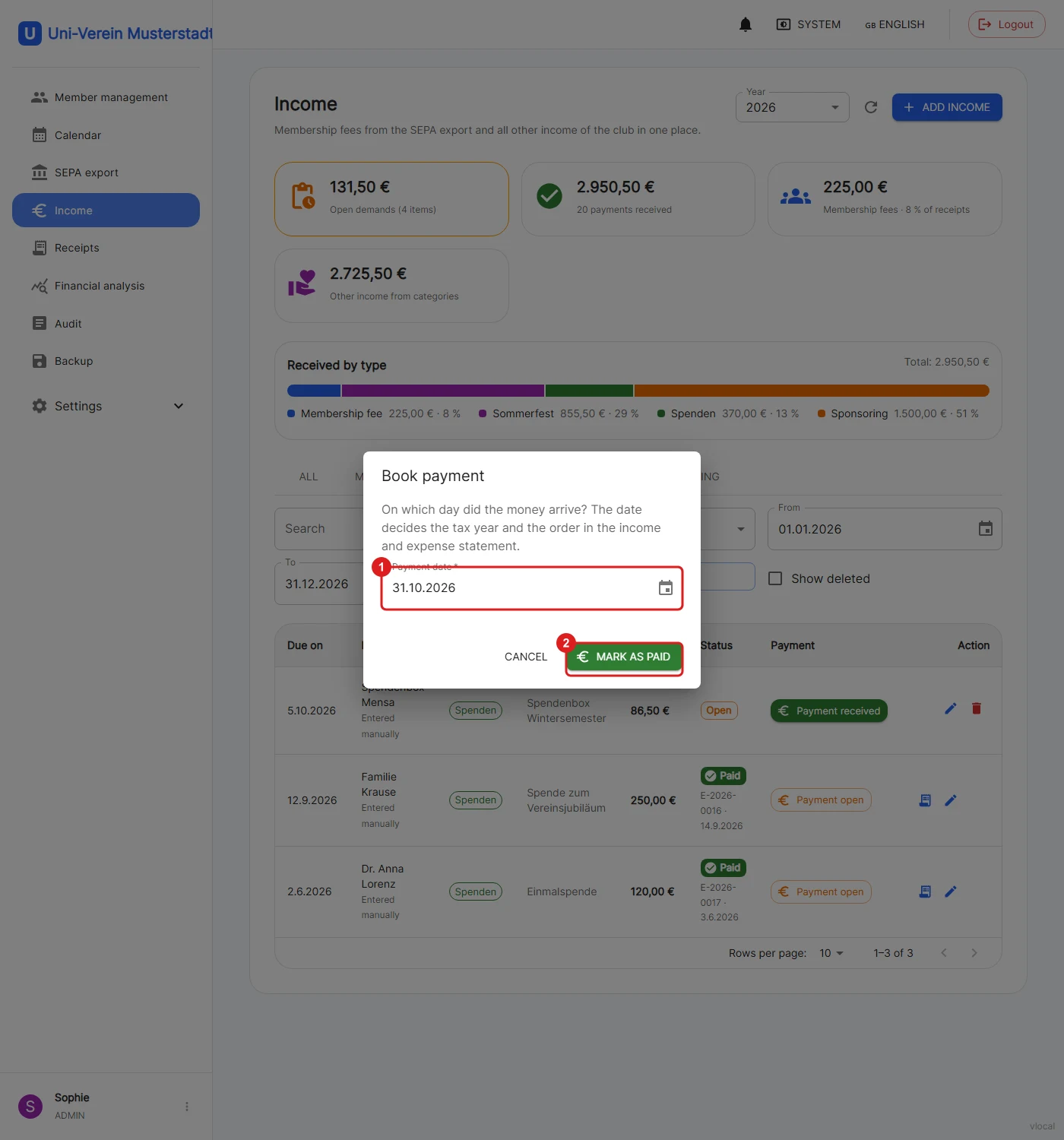
"Payment received" books a fee or an income as paid.
1: The dialog asks on which day the money arrived. Today's date is suggested. This payment date determines the tax year and the order in the EÜR, as well as the assignment in the financial analysis.
2: "Mark as paid" books the payment.
Booking numbers:
When booked as paid, every entry receives a booking number once, which never changes and is never reused: E-YYYY-NNNN for fees and income (e.g. E-2026-0016), A-YYYY-NNNN for paid receipts. The number is shown in the list below the status "Paid", together with the payment date. If a payment is set back to "Payment open" and booked again later, it keeps its number. The new payment date must then be in the year of the number already assigned.
Entries that were already paid in earlier versions keep the date they were reported with so far, earlier figures do not change.
🧾 Acknowledgement
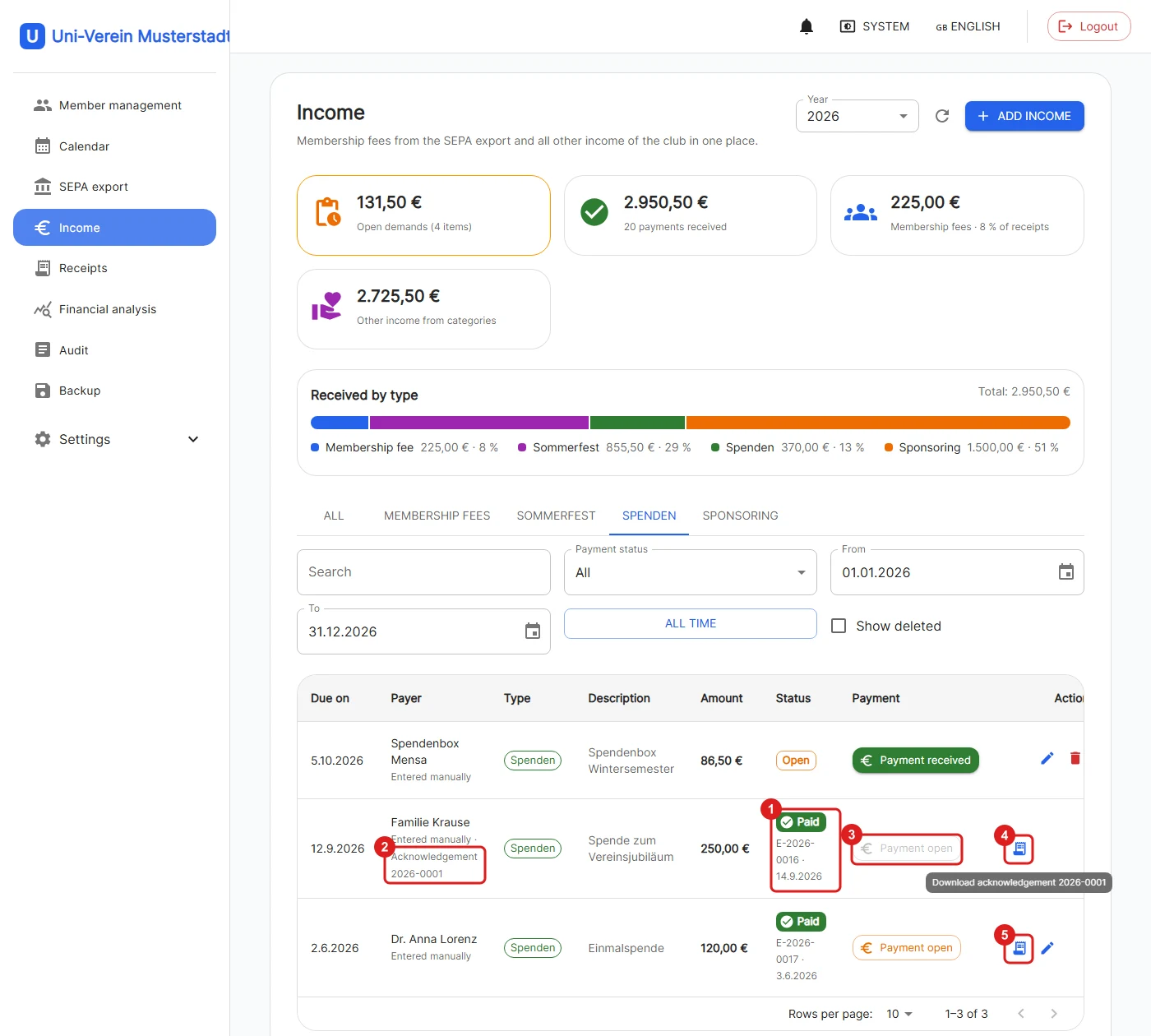
An acknowledgement (receipt of payment) can be created as a PDF for every paid fee and every paid income, e.g. for a donation.
1: Paid entries show the booking number and the payment date.
2: As soon as an acknowledgement has been created, its consecutive number in the format YYYY-NNNN (e.g. 2026-0001) is shown with the payer.
3: The entry is then locked: "Payment open" is no longer possible and the edit pencil disappears. The acknowledgement is kept exactly as it was issued.
4: This icon downloads the issued acknowledgement again at any time.
5: For paid entries without an acknowledgement, this icon creates it and downloads it immediately. Open entries do not have it.
The acknowledgement shows the club name and address from the bank details, the amount, payer, purpose and payment date, as well as fields for date and signature.
❗️The acknowledgement is not a donation receipt within the meaning of § 10b EStG (German income tax act). This is also printed on the PDF.
🧹 Delete & restore
Admins and Finance Managers can delete open entries with the trash icon, after a confirmation they disappear from the list. Paid entries cannot be deleted, "Payment open" has to be chosen first, which is no longer possible after an acknowledgement.
Deleted entries are not removed permanently (trash principle). Admins show them with "Show deleted" and can bring them back with the restore icon. A fee that has already been deleted can no longer be booked as paid.
🔐 Permissions
| Feature | User | Finance Manager | Admin |
|---|---|---|---|
| View and filter income and fees | ✅ | ✅ | ✅ |
| Record and edit income | ❌ | ✅ | ✅ |
| Book as paid / open | ❌ | ✅ | ✅ |
| Delete open entries | ❌ | ✅ | ✅ |
| Create and download acknowledgements | ❌ | ✅ | ✅ |
| View and restore deleted entries | ❌ | ❌ | ✅ |
| Manage income categories | ❌ | ✅ | ✅ |