📅 Calendar
🗓️ Calendar View
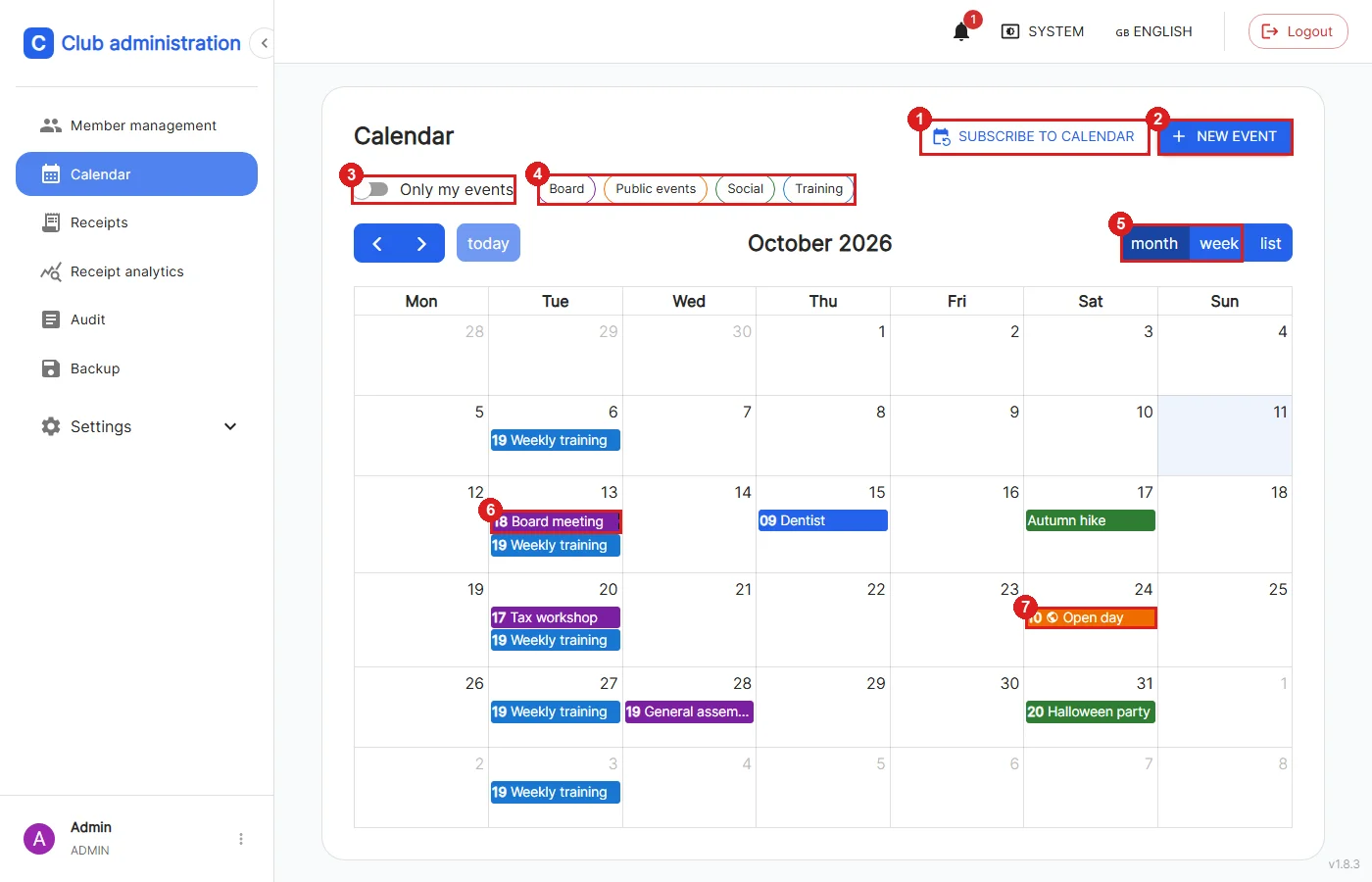
The calendar is available to all logged-in roles through the "Calendar" menu item. On smartphones it replaces the "Analytics" tab in the bottom navigation; the financial analysis remains reachable through the menu.
1: Opens the personal calendar feed, which lets you add the club calendar to Apple Calendar, Google Calendar or Outlook.
2: Creates a new event. Clicking a day in the calendar also opens the form, with the chosen day or time as the start.
3: Only shows events you own or are invited to.
4: The category chips filter events by category; several chips can be active at once. Filters and the switch are remembered in the browser.
5: Switches between month, week and list view. On smartphones a day view replaces the week view.
6: A dashed border means you have not yet replied to this invitation. Events you declined appear struck through and faded.
7: The globe icon marks events that appear in the public calendar.
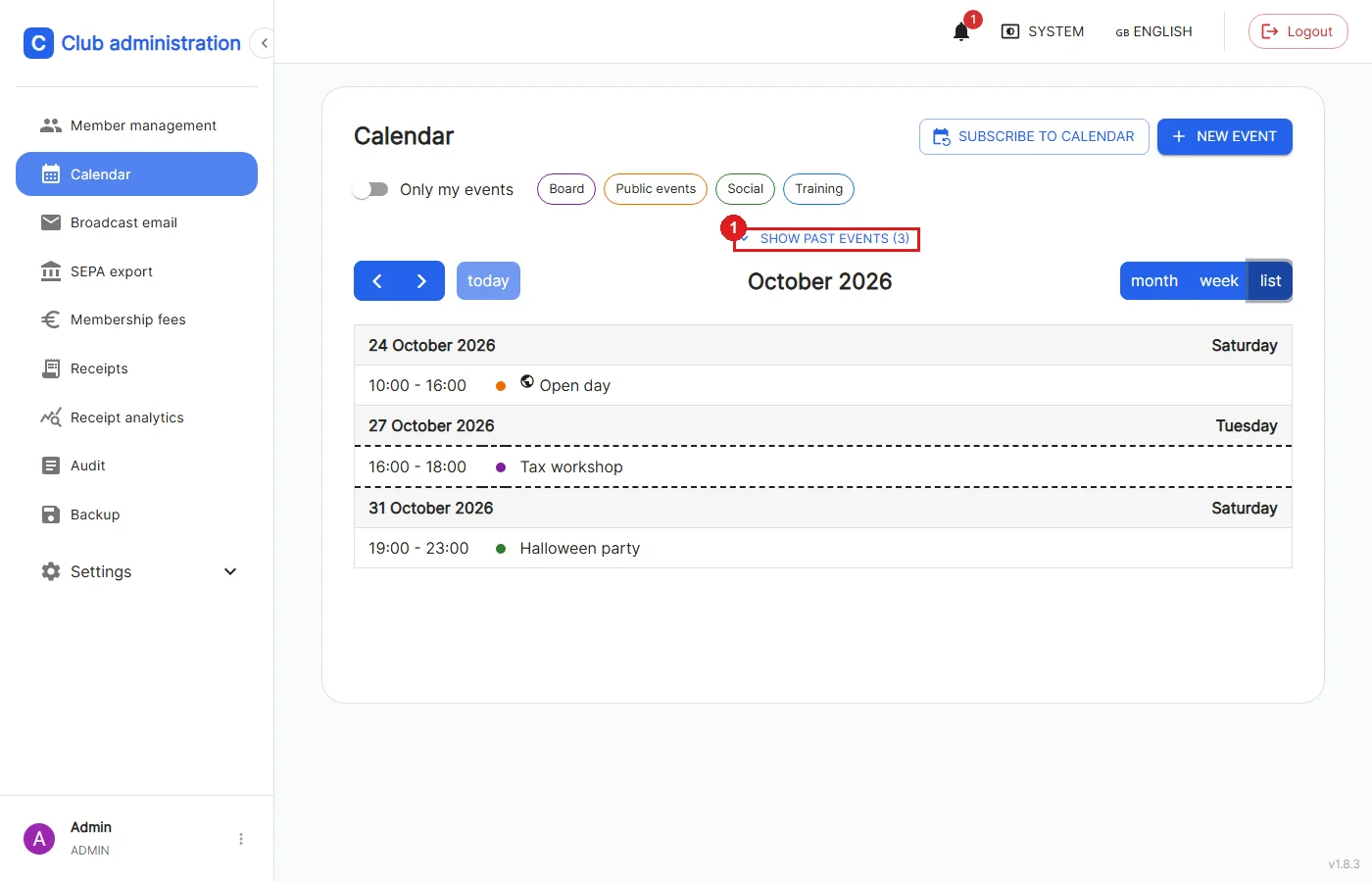
The list view shows all events of the month one below the other and is especially suited for small screens.
1: In the current month, events that have already passed are hidden at first so that the upcoming events are at the top. "Show past events" shows them including their number, "Hide past events" hides them again. This applies to the list view of the club calendar and of the public calendar.
➕ Creating an Event
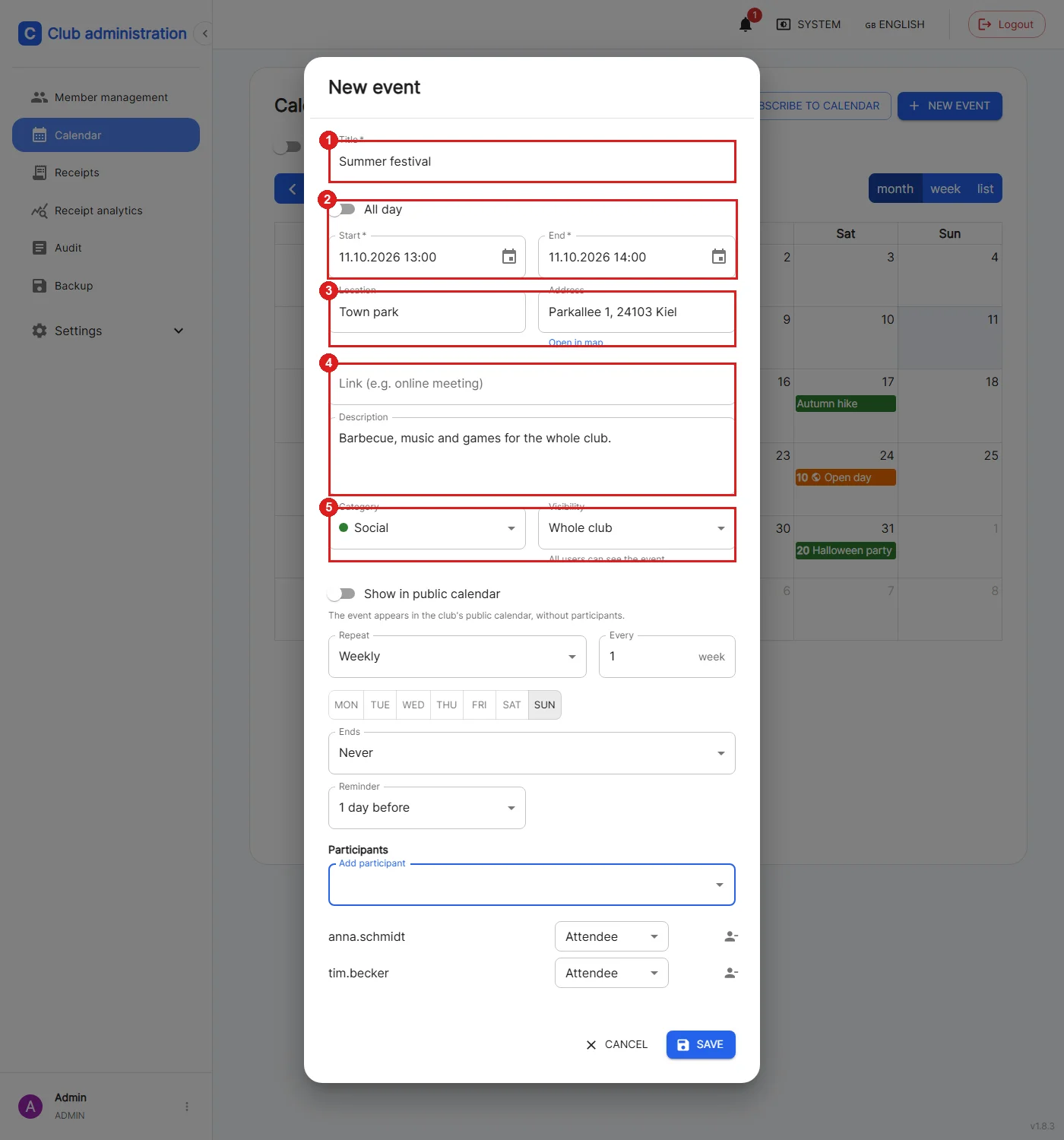
Every role can create events.
1: The title is required (up to 200 characters).
2: Events can be timed or all-day. The end must be after the start.
3: Location and address. As soon as an address is entered, "Open in map" appears, and the event shows a link that opens the address in a map service.
4: A link (e.g. to an online meeting, must start with http:// or https://) and a description.
5: The category colors the event in the calendar. Categories are defined by the admin, see Managing Categories.
After saving, the event's detail view opens.
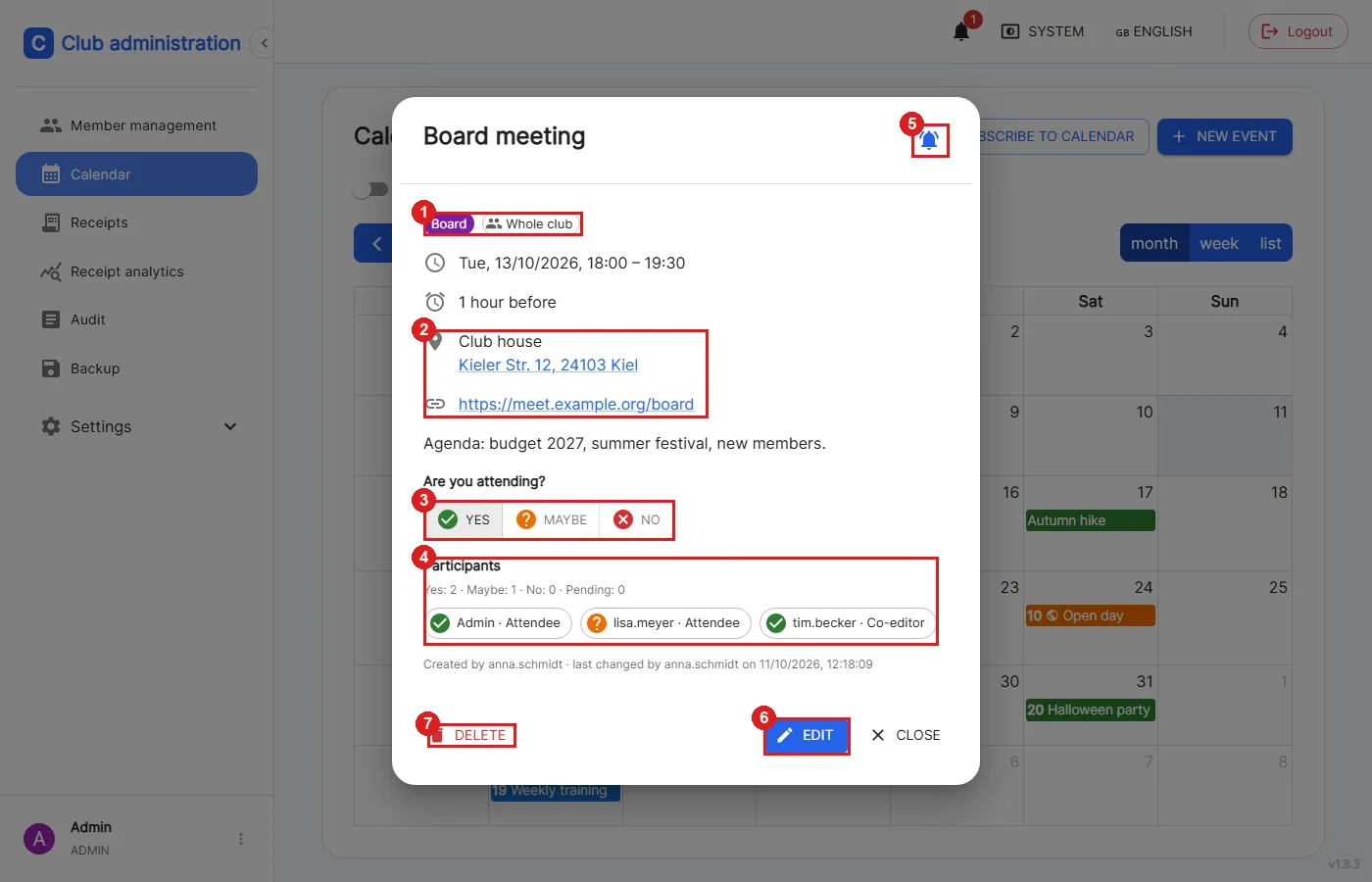
Clicking an event in the calendar opens its detail view.
1: Category and visibility of the event.
2: Location with map link and the online link.
3: Invited people reply here with "Yes", "Maybe" or "No". The reply can be changed at any time.
4: Summary of the replies and a list of everyone invited with their role and reply status.
5: The bell shows whether you are subscribed to the event (see Notifications).
6: Edit, only for the owner, co-editors and admins.
7: Delete, only for the owner and admins.
👁️ Visibility
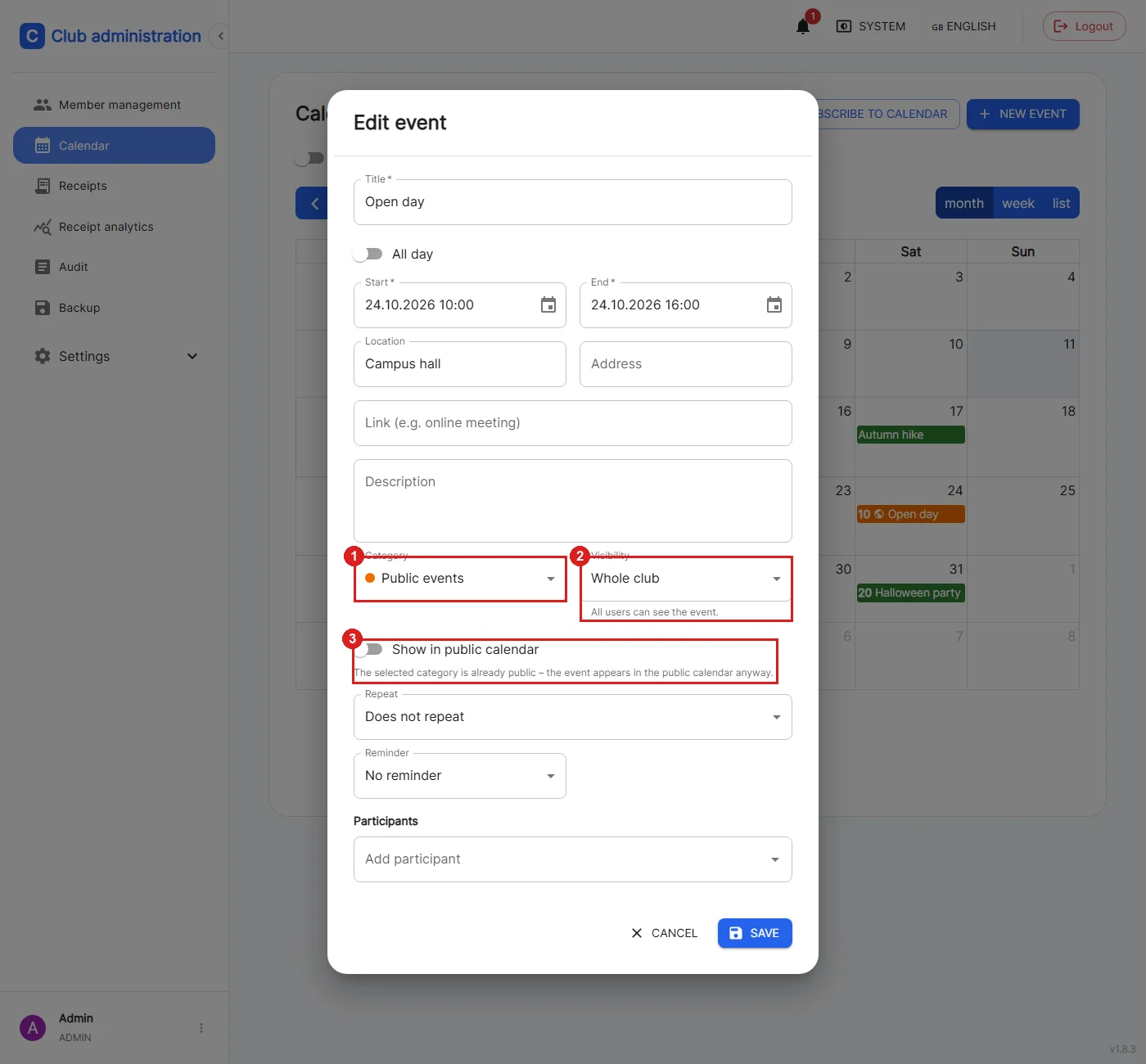
1: The category of the event.
2: The visibility determines who can see the event:
- Whole club: All logged-in users can see the event.
- Invited only: Only the owner, the invited users and admins can see the event.
- Private: Only the owner can see the event, not even admins.
3: Events for the whole club can additionally appear in the public calendar. This option is only shown once an admin has enabled the public calendar. If the event already belongs to a public category, it appears there anyway.
👥 Participants & Co-editors
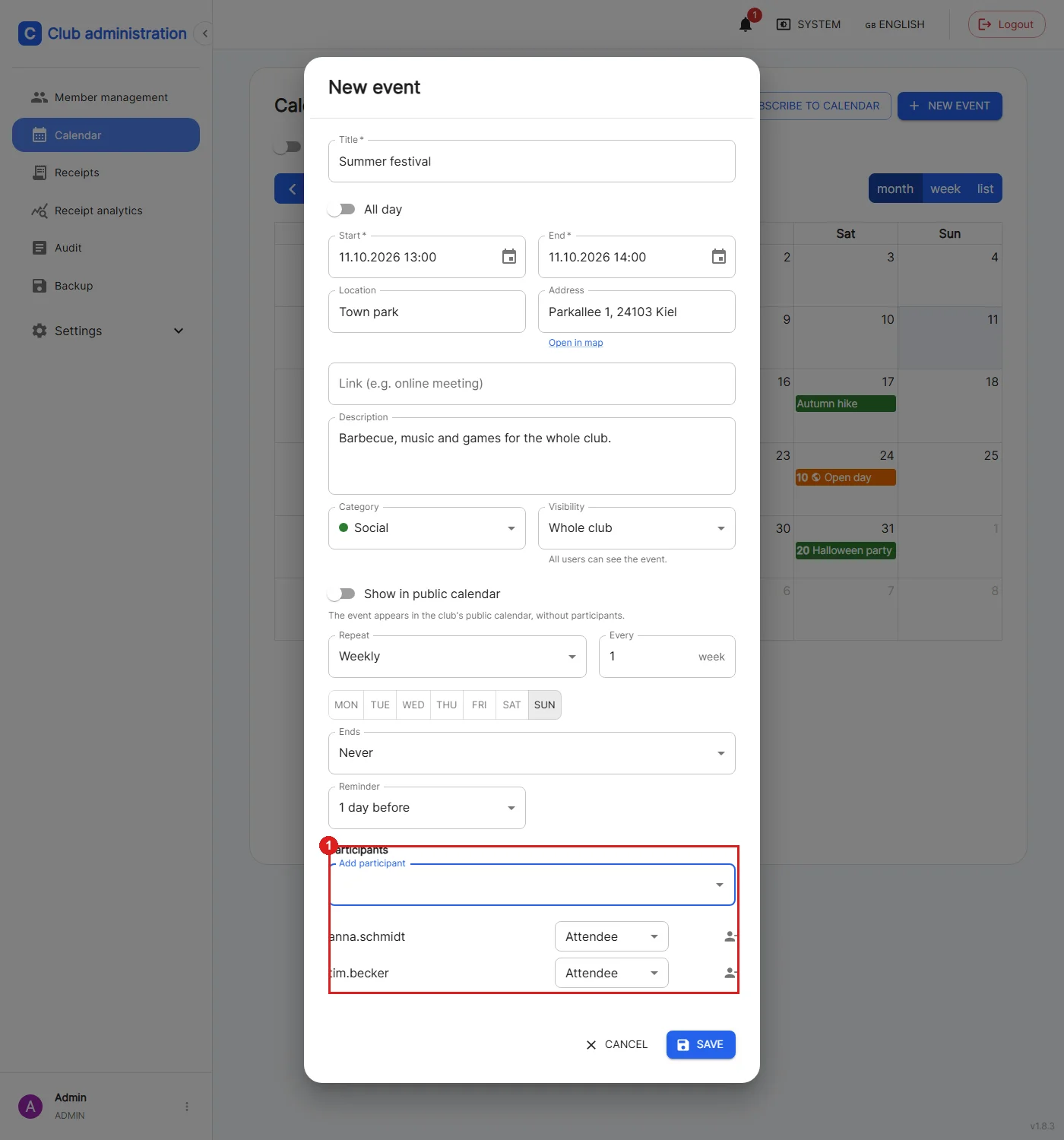
Use the "Add participant" field to invite other users.
1: Each invited person can be added as an Attendee or a Co-editor. Co-editors may change the event together with the owner, attendees can only accept or decline. The icon to the right of the role removes an invitation again.
Invited people are notified automatically and get the event in their calendar, even if it is only visible to invited users.
If two people save the same event at the same time, the later change is not silently overwritten. Instead, a hint to reload the event appears so that no changes are lost.
🔁 Recurrences & Reminders
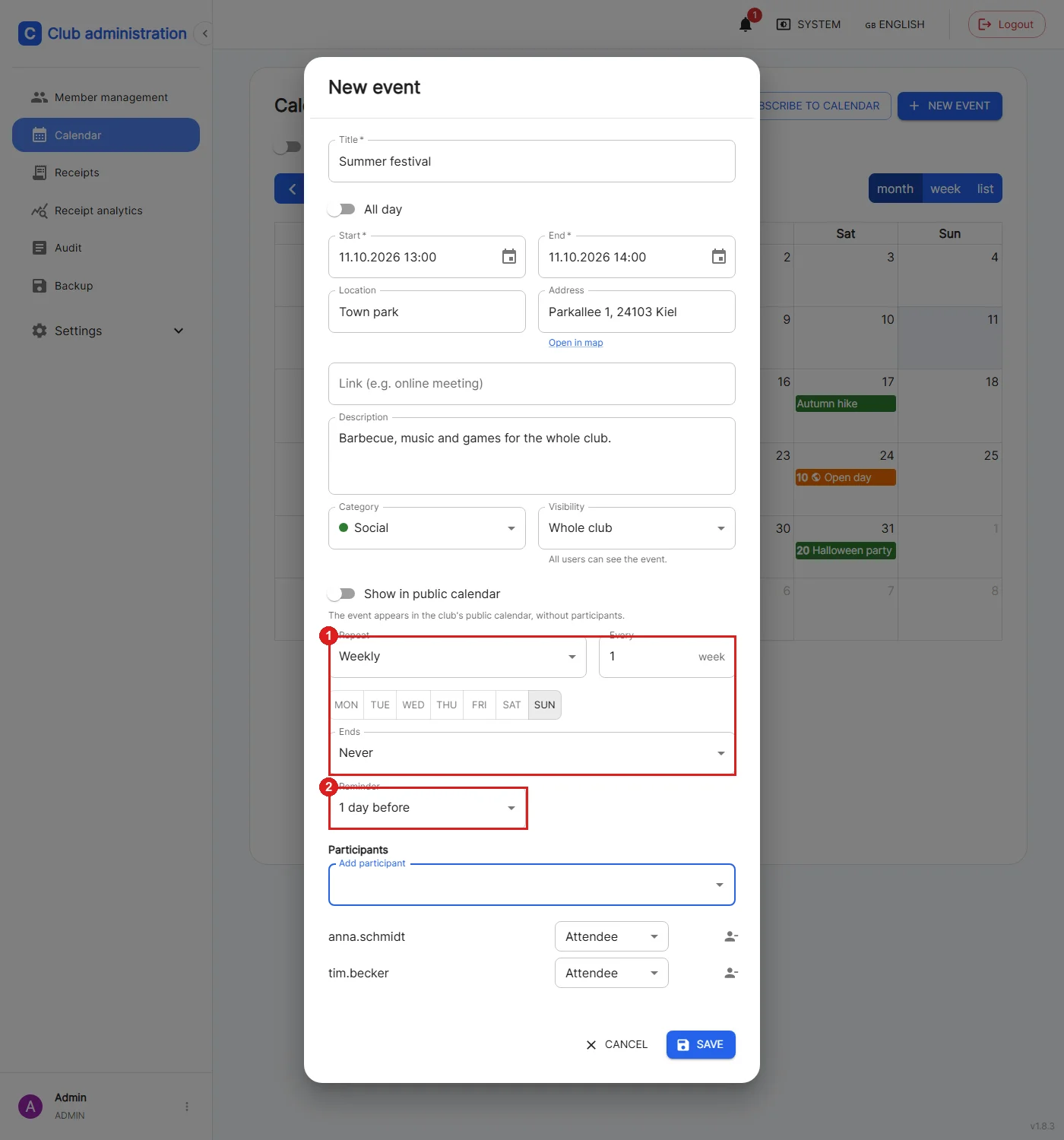
1: Events can repeat daily, weekly, monthly or yearly, also every few days, weeks, months or years ("Every"). For weekly events the weekdays can be chosen. A series can run forever, end on a date or end after a fixed number of events. The time of day stays the same across the switch between summer and winter time.
2: The reminder can trigger "at the start of the event" or up to one week before (15 minutes, 1 hour, 3 hours, 1 day, 2 days, 1 week). It is sent by bell and email to everyone subscribed to the event.
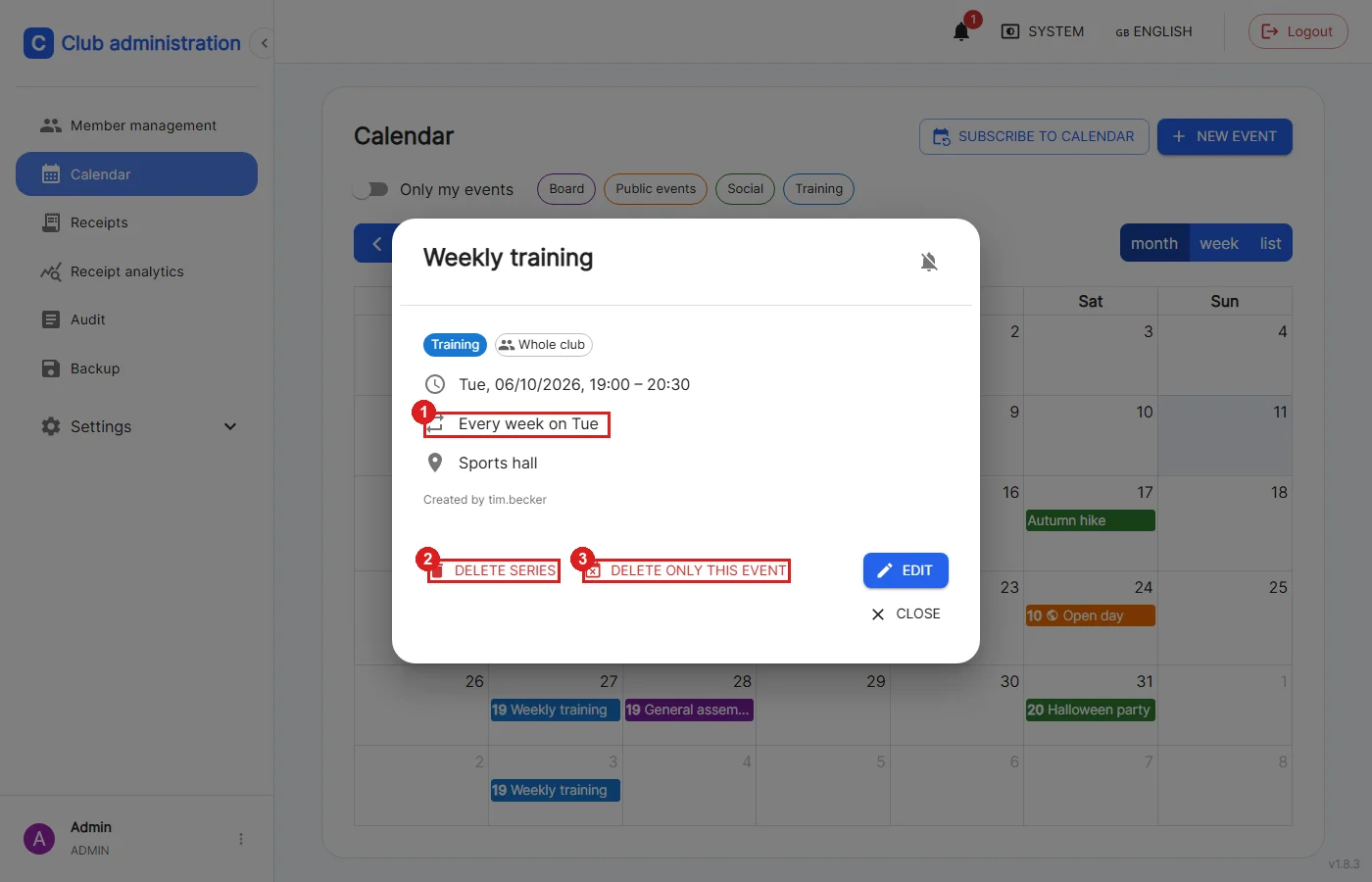
For recurring events the detail view shows the repetition rule.
1: Describes the rule in words.
2: "Delete series" removes all events of the series.
3: "Delete only this event" cancels just this one date, the other events of the series are kept. The detail view shows how many dates of a series have been cancelled.
Single dates of a series cannot be moved by drag & drop, only the whole series can be changed via "Edit".
✏️ Moving & Editing
Single (non-recurring) events can be dragged to another day or time in the month and week views. In the week view the duration can also be changed by dragging the bottom edge. This is only possible if you are allowed to edit the event.
If someone else changed the event in the meantime, moving is rejected and the event is reset.
🔔 Notifications
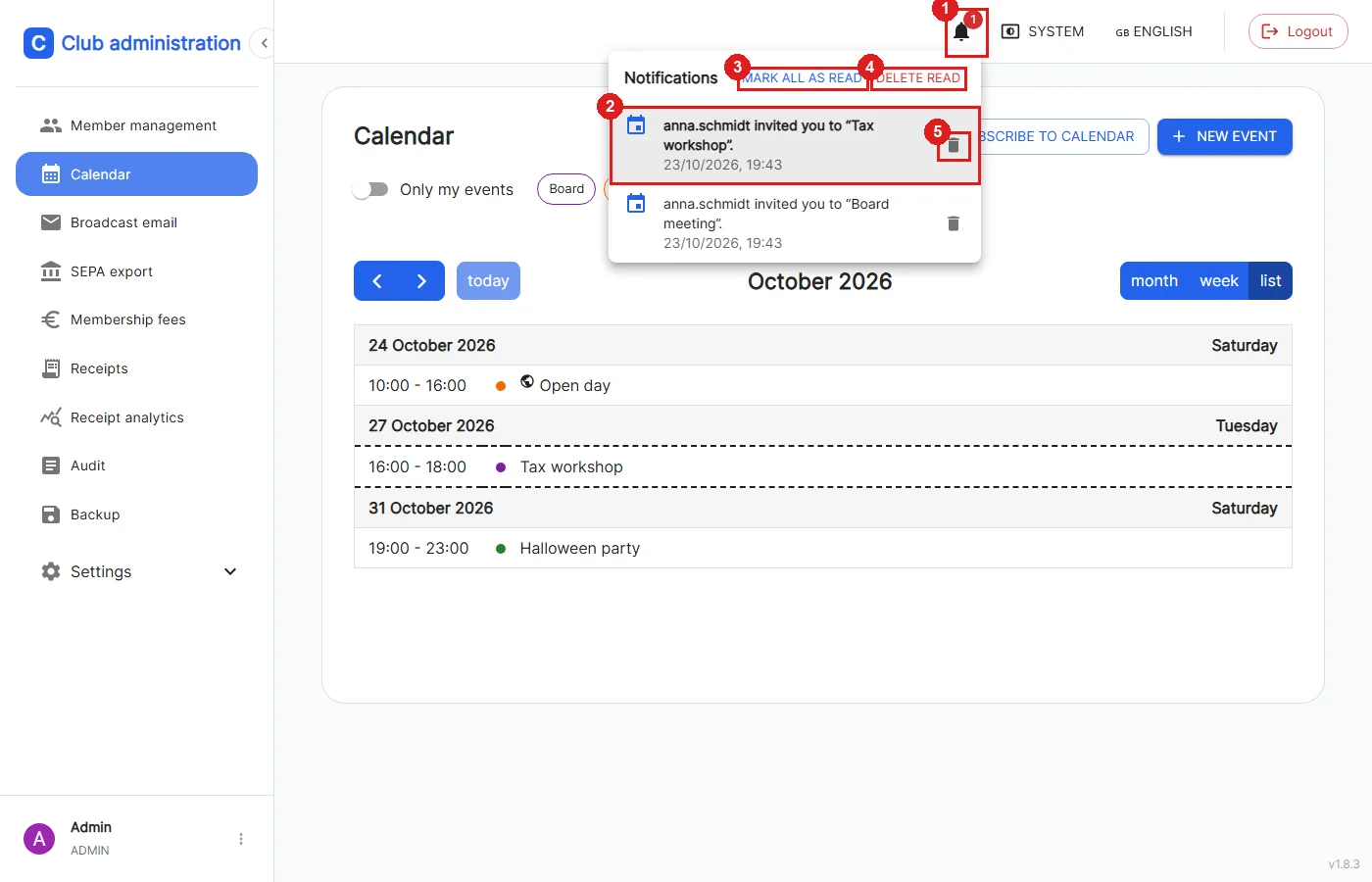
1: The bell at the top right is visible to all roles. The number shows the unread notifications.
2: Clicking a notification opens the event directly. You are notified about invitations, changes (including what changed, e.g. description or time), deletions, replies to your own events and reminders.
3: Marks all notifications as read. The button is only visible as long as there are unread ones.
4: "Delete read" deletes all already read notifications at once. The button appears as soon as there are read ones.
5: The trash icon deletes a single notification. Unread notifications are shown in bold with a grey background.
Owners and invited people are subscribed to an event automatically. Everyone else who may see the event can subscribe to it and unsubscribe again via the bell in the detail view.
In addition, Uni-Verein sends emails with an .ics invitation that can be added to any calendar app directly. The email contains a link that opens the event. For emails to be sent, the mail settings must be set up under Configure email.
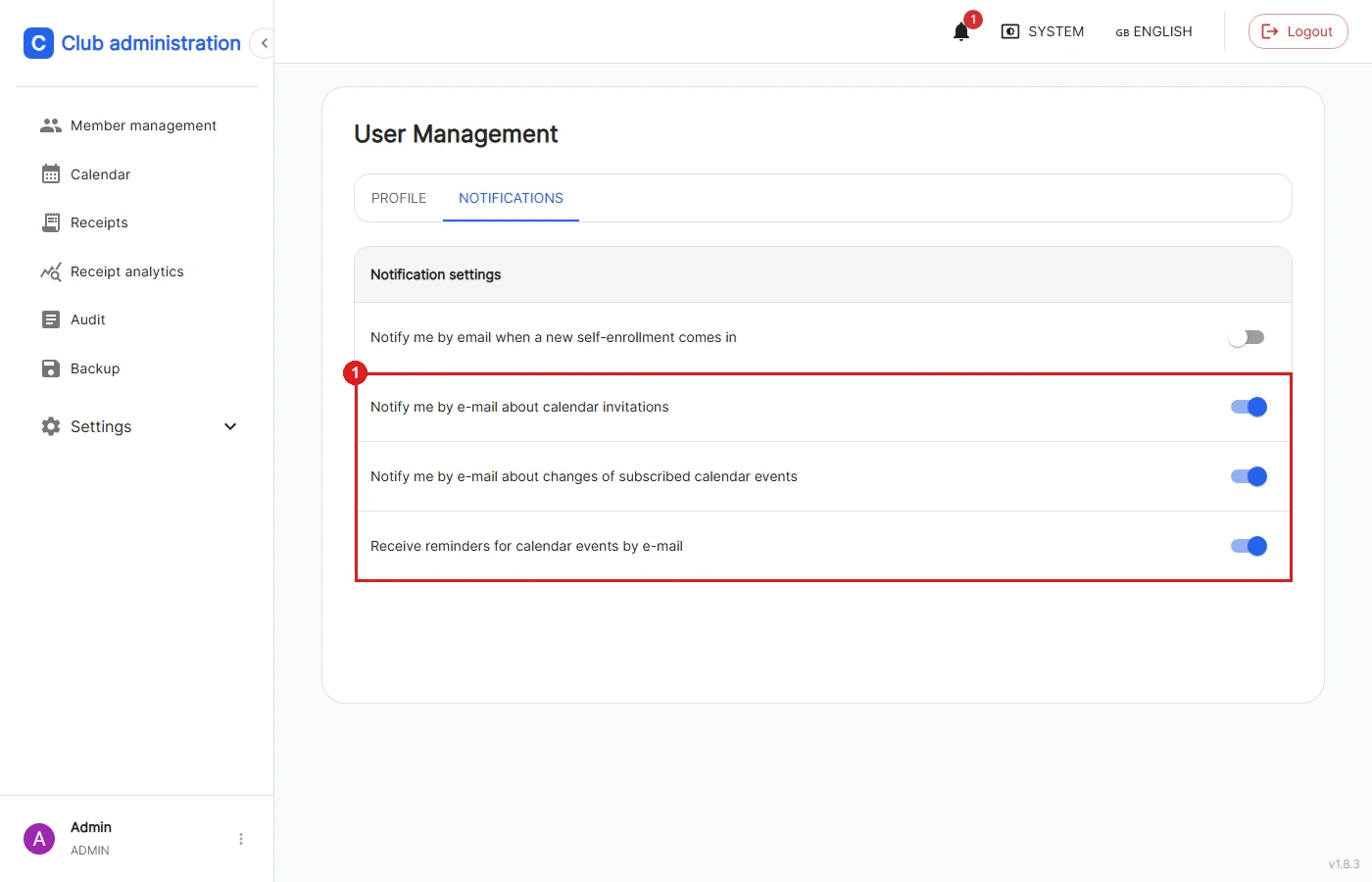
Profile settings → Notifications
1: Each kind of calendar email can be turned off separately: invitations, changes to subscribed events and reminders. The notifications in the bell are not affected.
🔐 Permissions
| Feature | User | Finance Manager | Admin |
|---|---|---|---|
| Create events, invite members, reply | ✅ | ✅ | ✅ |
| Edit and delete own events | ✅ | ✅ | ✅ |
| Edit events of others (as co-editor only) | ✅ | ✅ | ✅ |
| Edit and delete events of others (without invitation) | ❌ | ❌ | ✅ |
| See private events of others | ❌ | ❌ | ❌ |
| Subscribe to the calendar (personal feed) | ✅ | ✅ | ✅ |
| Manage calendar categories and public calendar | ❌ | ❌ | ✅ |