🔐 User Account & Security
🔑 First-time setup instead of a default password
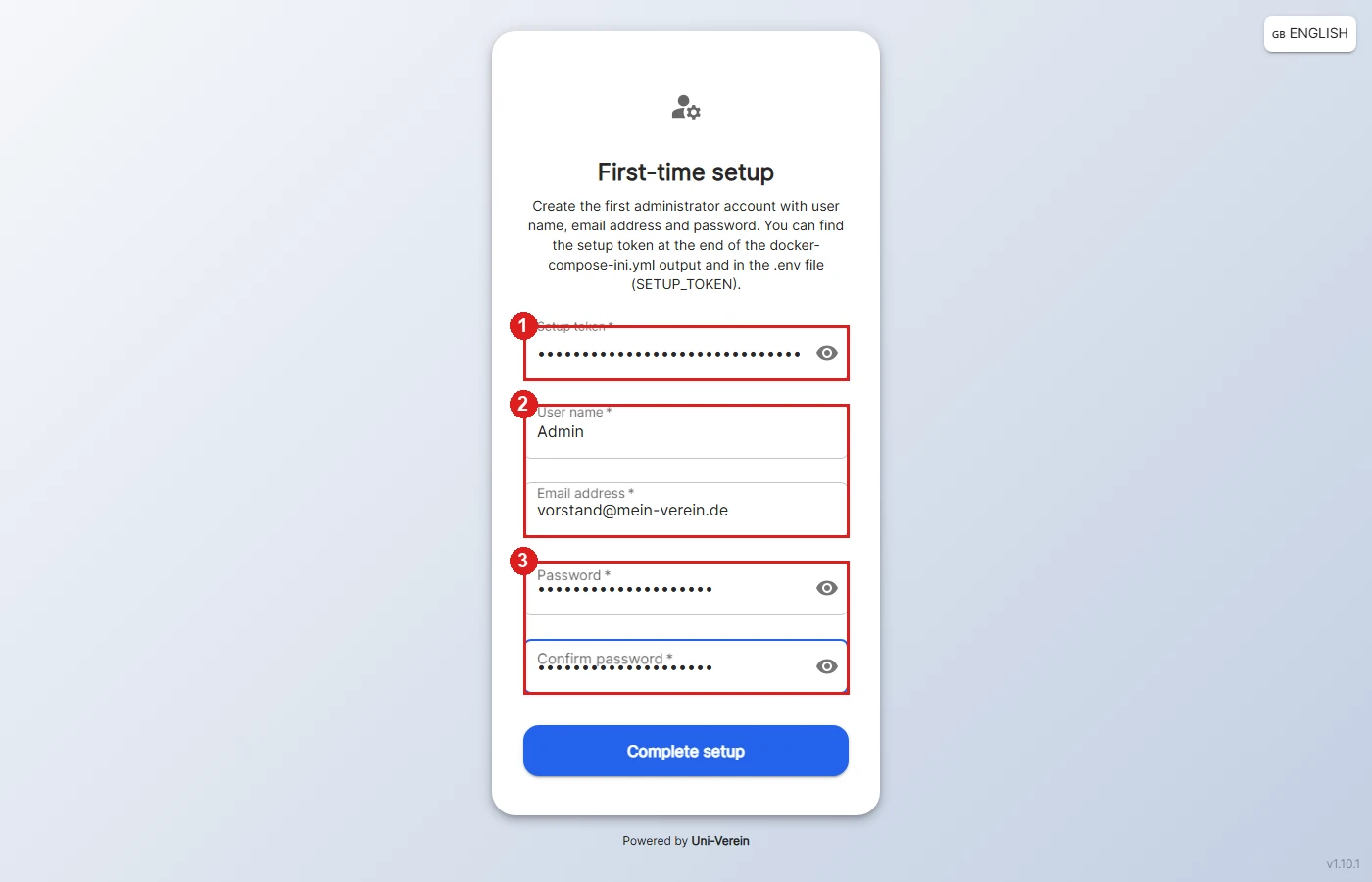
A fresh installation has no user and no well-known default password. When you open it for the first time, Uni-Verein shows the "First-time setup" page where the first administrator is created.
1: The setup token is at the end of the output of docker-compose-ini.yml and in the .env (SETUP_TOKEN). It protects the first-time setup: whoever reaches a freshly started server before you can't take it over without the token. Without a token the setup is locked.
2: User name (at most 50 characters) and email address of the administrator. The address is needed for notifications such as the notice on a new device.
3: The password must be 10 to 50 characters long and entered twice identically. Afterwards you are logged in right away.
As soon as a user exists, even a deleted one, the page is gone and the token is useless. How to continue afterwards is described in the Quick Start.
ℹ️ Existing installations keep their users. Since version 1.10.1 they are no longer forced to change the password, so if you still use a default password, change it yourself in the "Changing your own password" section.
✏️ Changing your own password
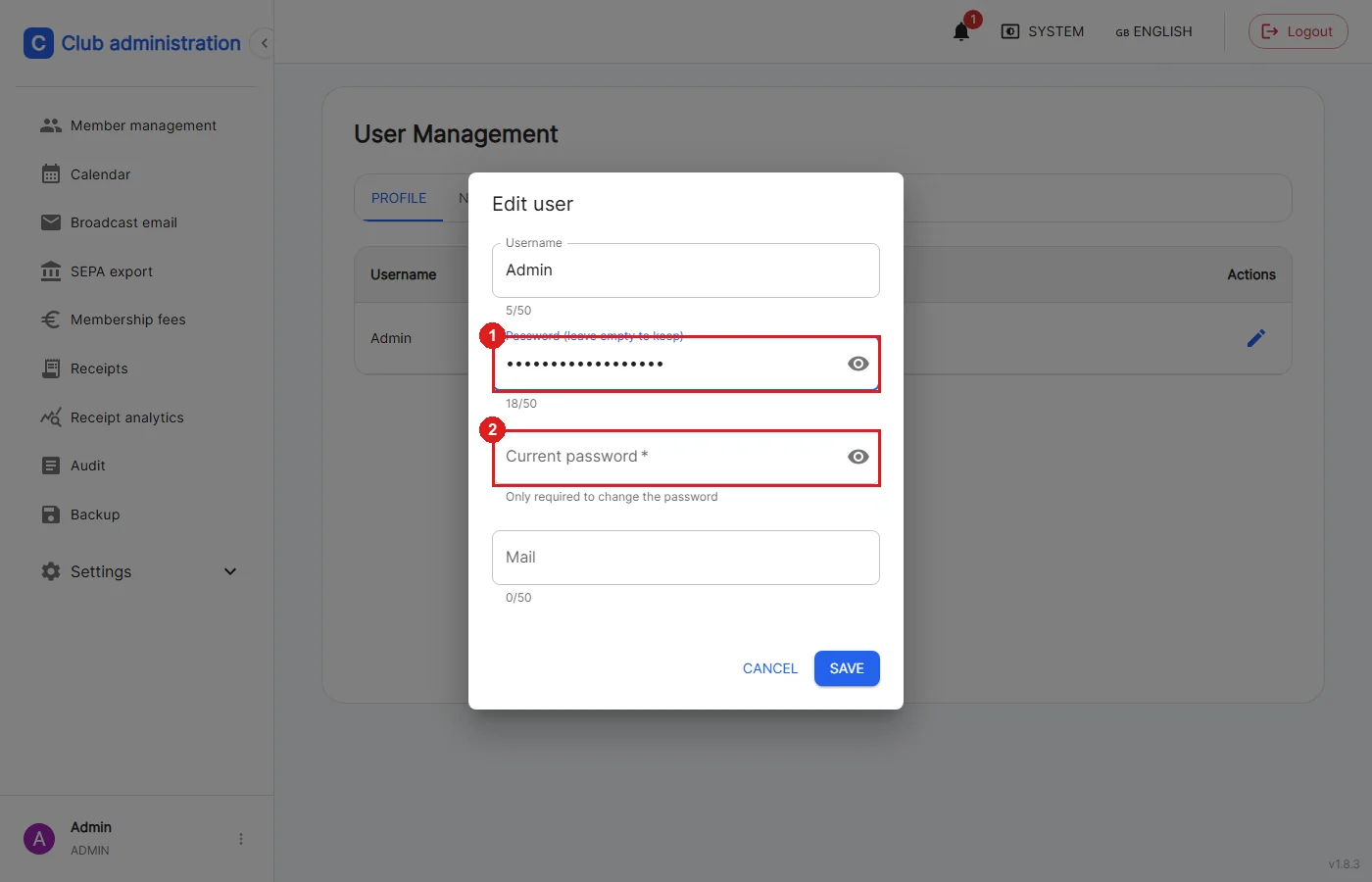
Click your own name at the bottom left ("Profile settings") → pencil icon in the row of your own user. Admins also find the edit form in the user management.
1: If a new password is entered here, the current password is required as well. Leave it empty to keep your password.
2: The current password is only requested when you change your own password. Wrong entries count towards the login lockout. Admins can still reset the password of other users without knowing it.
All roles can change name, e-mail address and password of their own account. Admins cannot delete themselves or change their own role.
📲 Two-factor authentication (2FA)
In addition to the password, every user can protect their account with a code from an authenticator app (e.g. Google Authenticator, Aegis or Bitwarden). This is possible for all roles and especially recommended for Admins and Finance Managers.
Two-factor authentication is not available in the demo version.
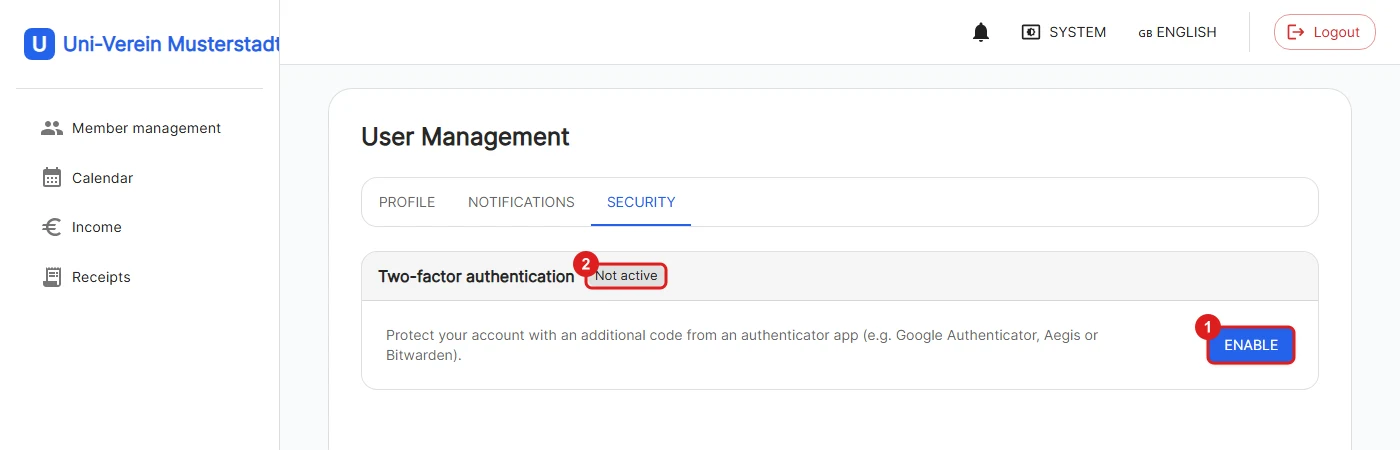
Profile settings → "Security" tab
1: "Enable" starts the setup.
2: The status shows whether two-factor authentication is active.
For your security, Uni-Verein first asks for your current password again ("Confirm your password"), so nobody can set up the 2FA of an account with a foreign session that is still open.
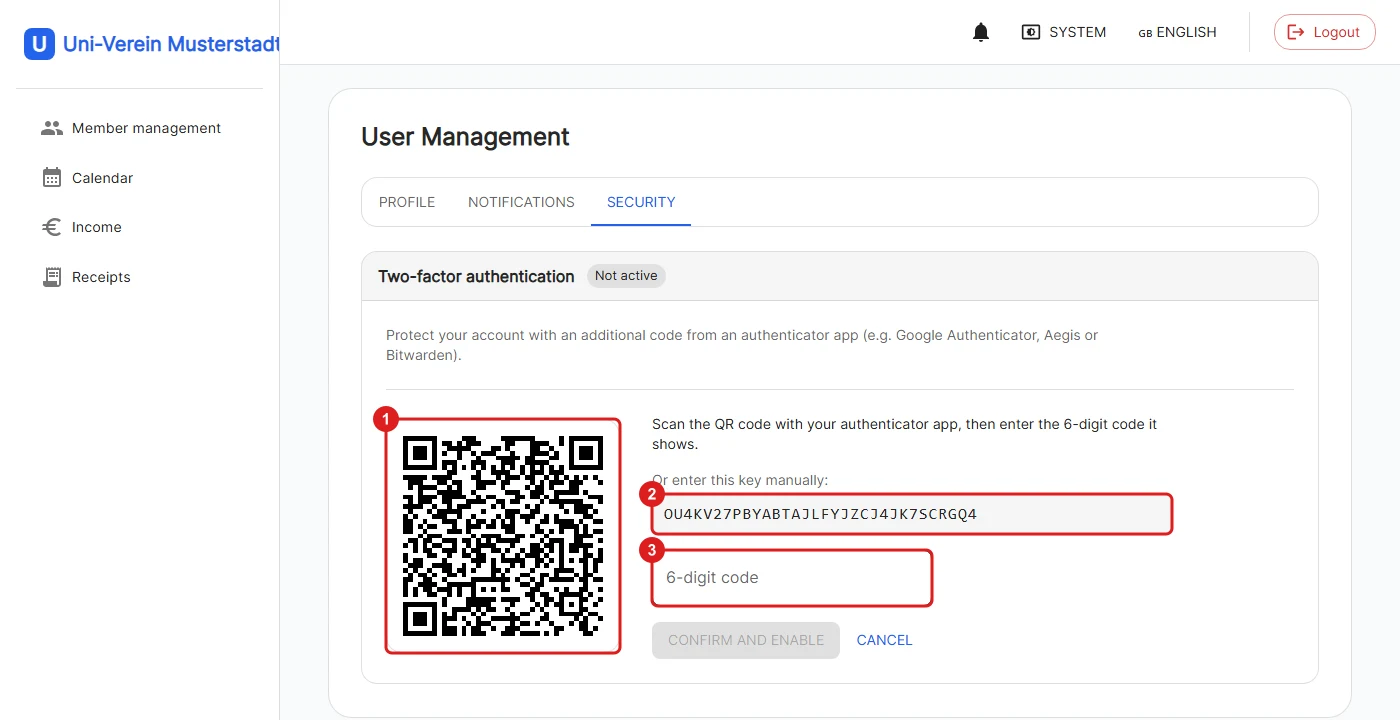
1: Scan the QR code with the authenticator app.
2: Alternatively, the key can be entered manually in the app.
3: Enter the 6-digit code from the app and finish with "Confirm and enable". A wrong code is rejected.
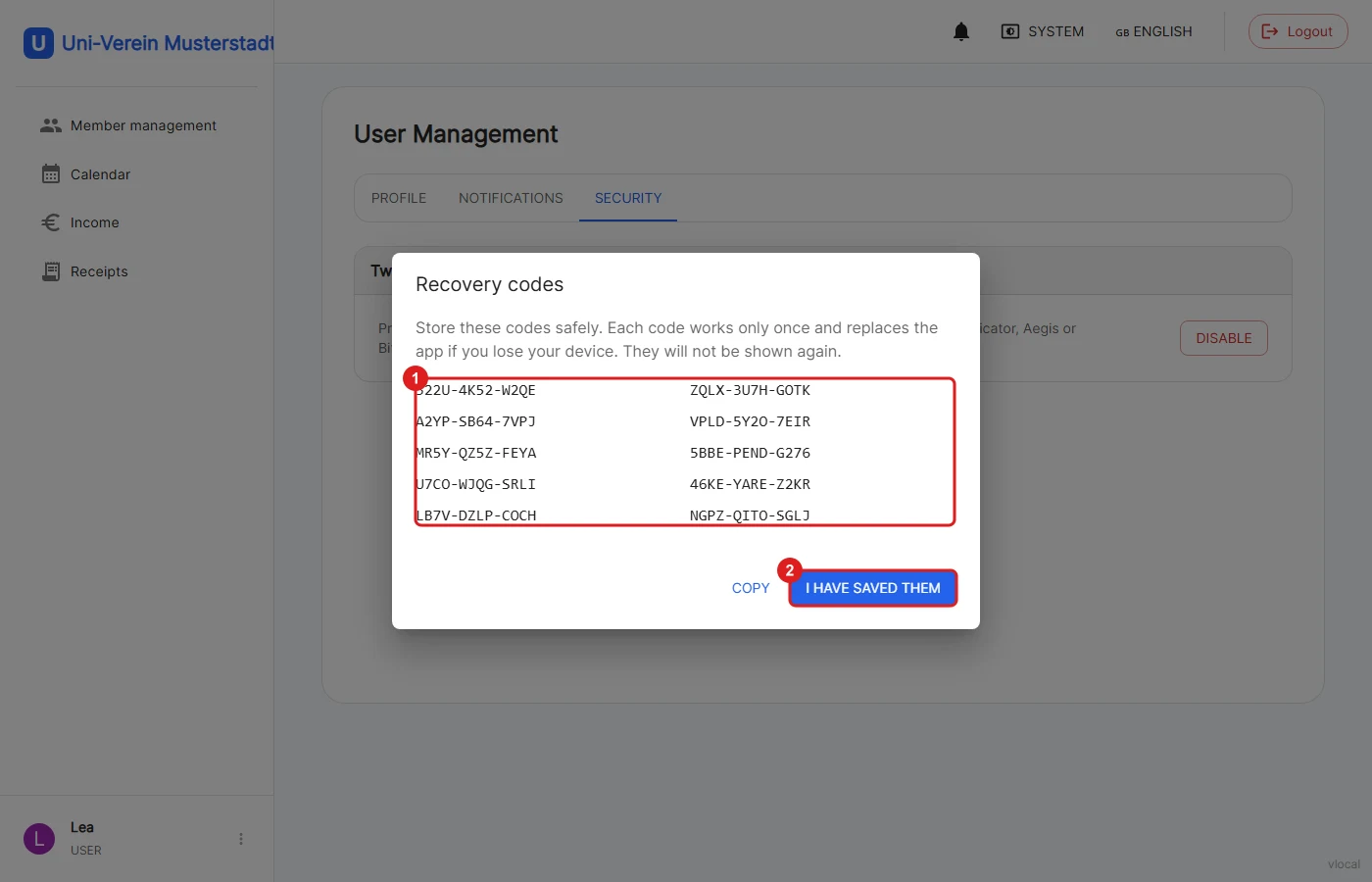
1: After enabling, 10 recovery codes are shown. They replace the app if the device is lost or broken and each works only once. "Copy" puts them on the clipboard. They are shown only this one time, store them safely (e.g. in a password manager).
2: Only "I have saved them" closes the dialog.
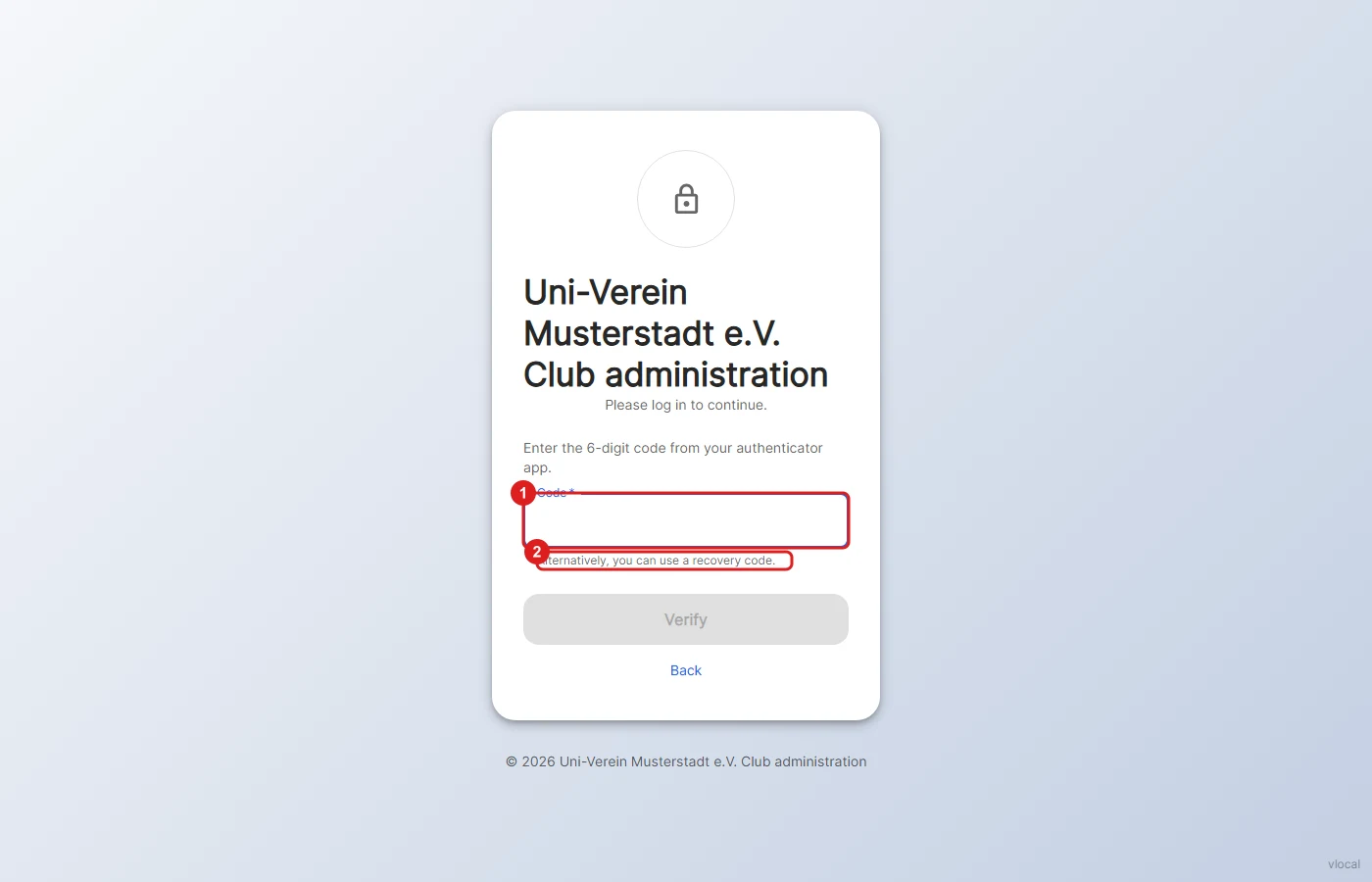
After user name and password comes the code prompt. There is no session before it.
1: Enter the 6-digit code from the app, spaces in between do no harm. A code can only be used once, a code that was already used is also rejected on another device. "Back" returns to the password form.
2: Instead of the code, a recovery code can be entered, also in lowercase and without hyphens. Every recovery code works only once.
Wrong codes are counted like wrong passwords: after several failed attempts, codes from the app are blocked per address and per account. A recovery code still works during such a lockout, and the login says so. More on the lockout under Protection against password guessing.
Turning it off:
In the same tab, "Disable" replaces the enable button. The password and a current code or a recovery code are required to confirm. Whoever enables 2FA again later receives new recovery codes.
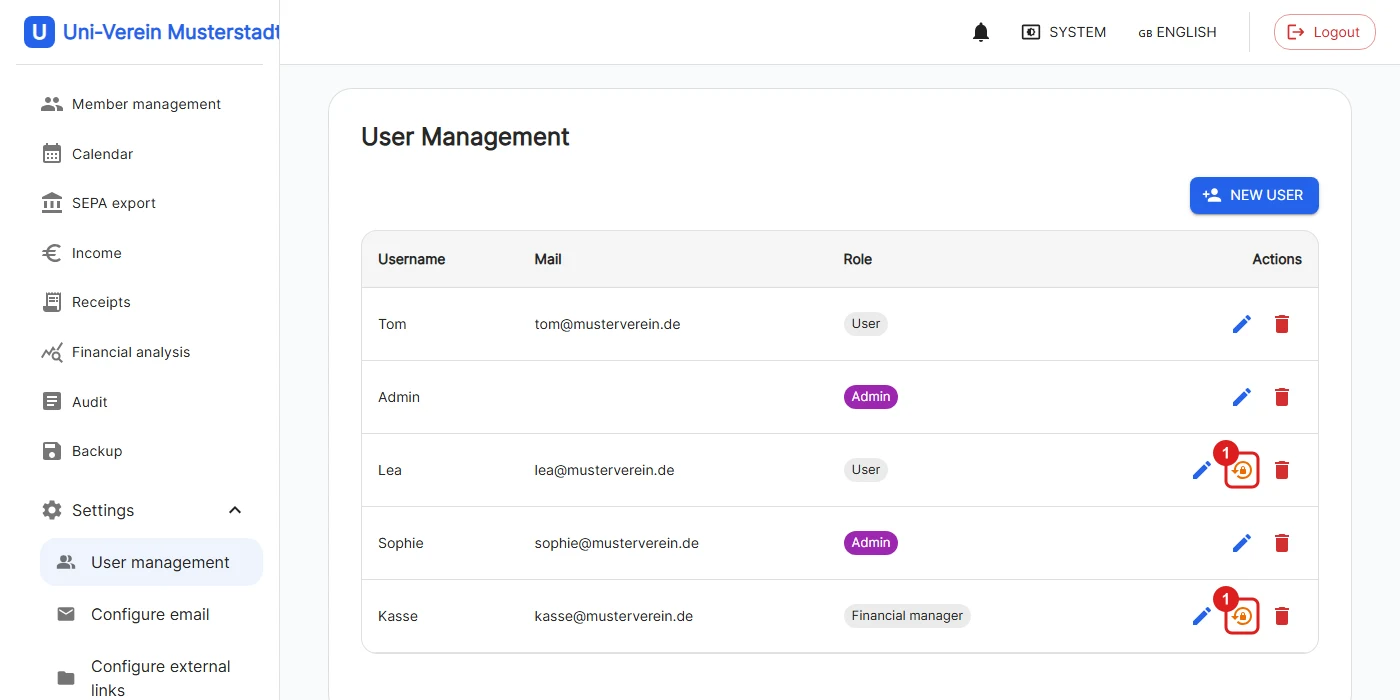
Settings → User management
1: Every user with active 2FA has a "Reset two-factor authentication" icon. After a confirmation the user can sign in with the password only again and set up the 2FA anew if needed. This is meant for users who lost their device and recovery codes. Your own account does not have this icon.
❗️For the only Admin there is no way back if they lose the device and the recovery codes. Therefore keep the recovery codes carefully or create a second Admin.
Technical details:
The 2FA secret is stored encrypted. The name shown in the authenticator app can be set with the optional installation setting TwoFactor__Issuer.
🔒 Sessions and login
The login token is no longer kept in the browser's localStorage but in an httpOnly cookie (uv_auth), so injected scripts can no longer read it. Requests that change data additionally carry a CSRF protection header.
Logging out, changing the password and changing the 2FA end the sessions on all other devices, a new login is needed there.
❗️After updating to version 1.10.0 all users have to log in once again.
📧 Notice on login from a new device
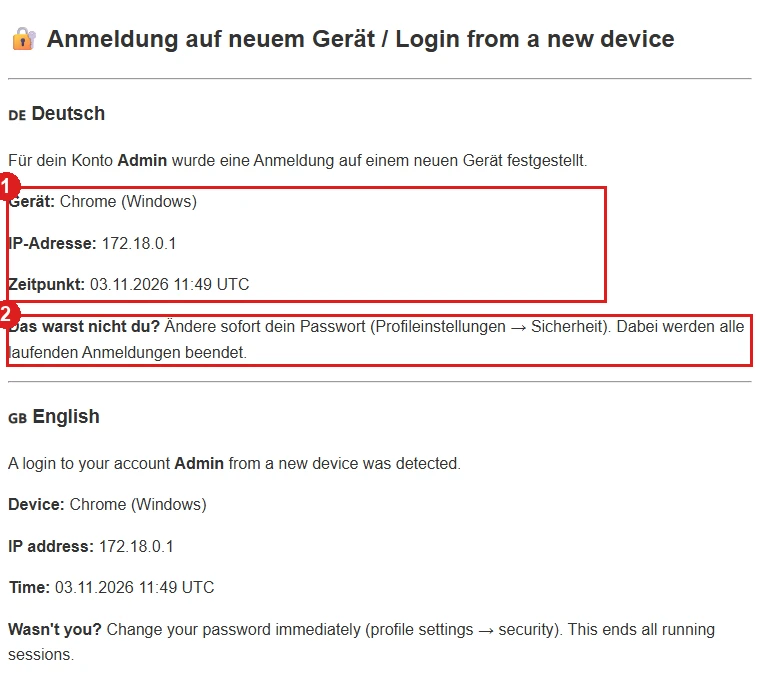
If someone logs in on a device that has never been used with the account, Uni-Verein sends an e-mail to the user's address. That way it stands out when a stranger knows the password.
1: The mail names browser and operating system, the IP address and the time of the login. It is written in German and English.
2: If it wasn't you, change your password immediately (profile settings → security). This ends all running sessions, see Sessions and login.
With 2FA enabled the mail is sent right after the correct password, before the code has been entered. It then points out that the login is not completed yet, because that is exactly when a notice is valuable: the password is apparently known, only the second factor stopped someone.
- A device is recognized by the cookie
uv_device, which the browser keeps for a long time. Only a hash of it is stored. If someone clears cookies or uses another browser, it counts as a new device. - Nothing is sent for a user's very first device, otherwise every new account would get a mail.
- Users without an email address get no mail, and nothing is sent as long as no mail settings are stored under Configure e-mail. Therefore enter an address for every account.
- At most one such mail is sent per user every 15 minutes.
Privacy:
The IP address and browser identification only appear in the mail. They are neither stored nor logged, and no location lookup is done.
🔔 Setting notifications
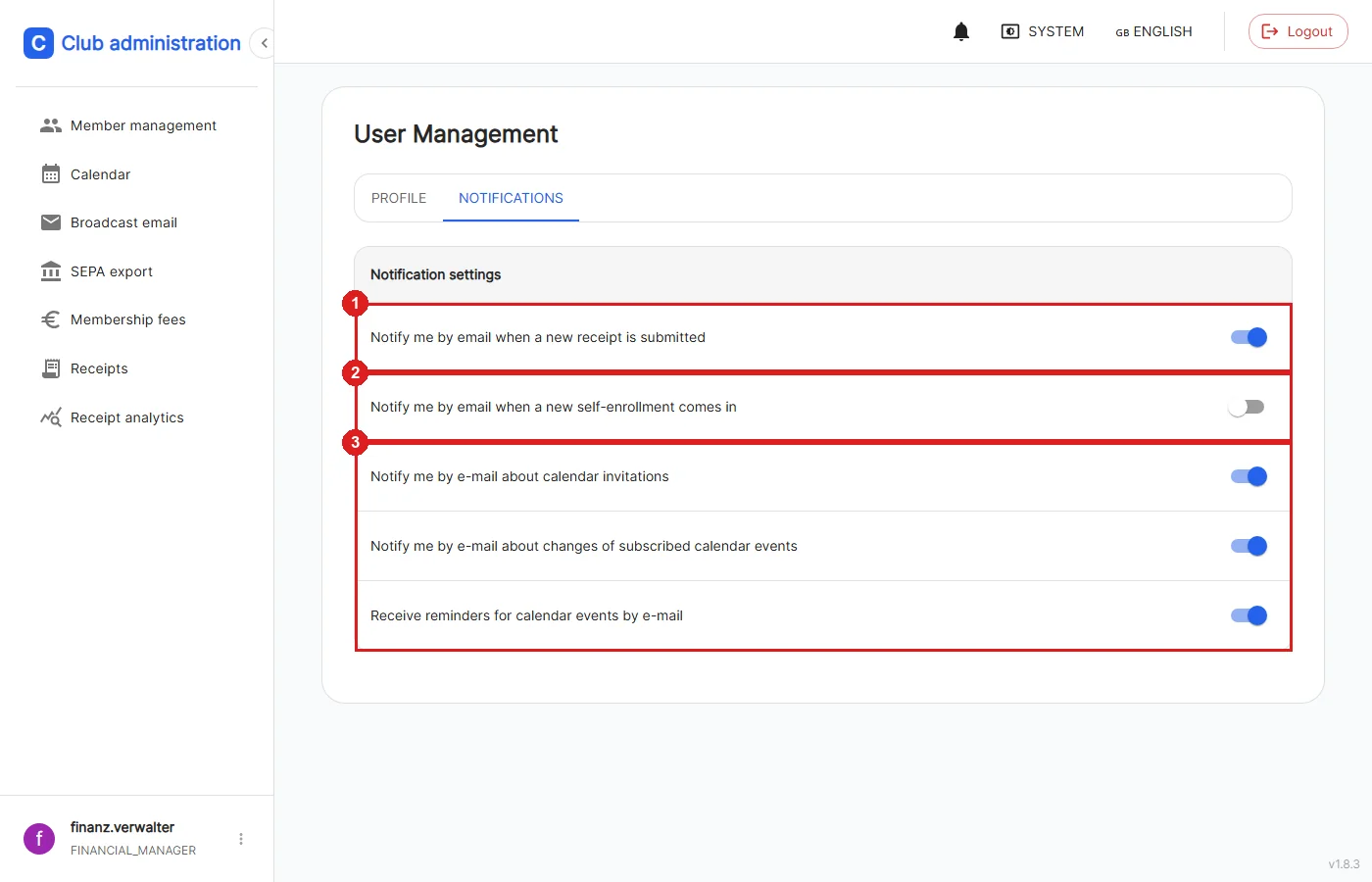
Profile settings → Notifications
Every logged-in person decides here which events they are informed about by e-mail. The switches take effect immediately and are saved automatically. E-mails are only sent if the mail settings under Configure e-mail have been set up.
1: New receipt: only visible to financial managers, active by default. See Receipt management.
2: New self-enrollment: visible to all roles, off by default. See Self-enrollment.
3: Calendar e-mails (invitations, changes to subscribed events, reminders): visible to all roles, active by default. See Calendar.
🚫 Protection against password guessing
To prevent automated password guessing, Uni-Verein temporarily blocks the login after several failed attempts.
- After three wrong passwords you have to wait 30 seconds, every further failed attempt doubles the waiting time up to a maximum of 15 minutes. After 15 minutes without a failed attempt the counter is reset. The login shows the remaining waiting time.
- The lockout applies per user name and visitor address. An attacker can therefore no longer lock known accounts like
Adminout permanently for everybody. From another device or network the login stays possible. Unknown user names are locked as well, so it cannot be seen which accounts exist. For IPv6 the whole /64 network counts as one address. - The lockouts are kept in memory and disappear when the backend is restarted.
- If you run Uni-Verein behind your own reverse proxy, you have to tell it about the proxy, otherwise all visitors share one lockout, see Get Started.
Users who have been deleted or whose role was changed also lose their access immediately: the login is checked against the current user on every request instead of staying valid for up to 8 hours.
📜 Traceability
Changes to users are recorded in the Audit Log without storing passwords.